> ## Documentation Index
> Fetch the complete documentation index at: https://docs.geekai.co/llms.txt
> Use this file to discover all available pages before exploring further.
# Cline
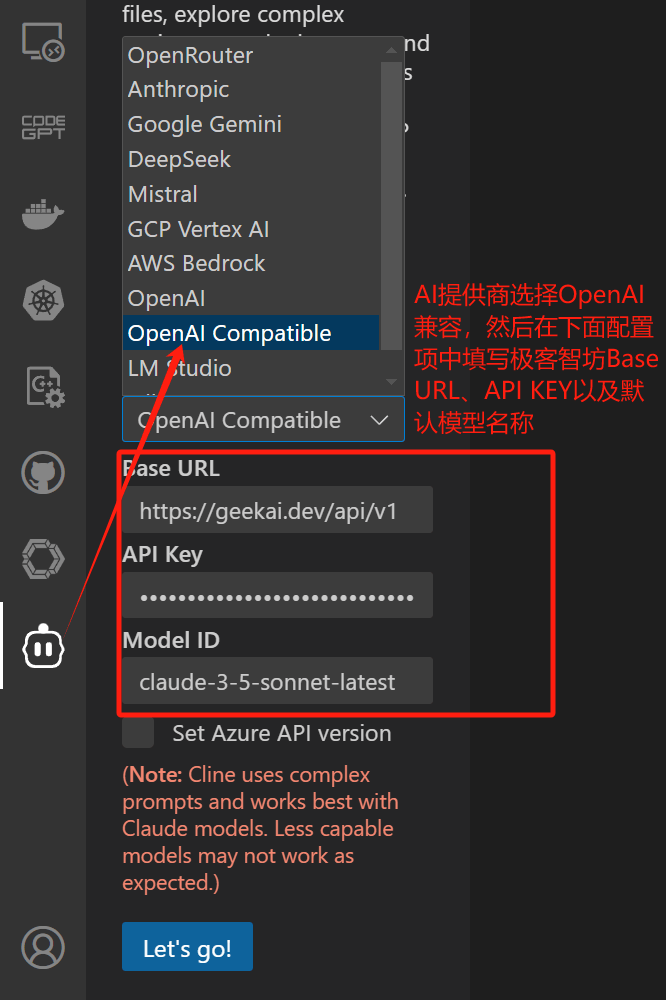
在 VS Code 中安装 [Cline](https://github.com/cline/cline) 扩展后,打开 Cline 配置界面,在 AI 供应商下拉列表中选择 OpenAI Compatible,然后在下面的配置项中填入极客智坊模型代理接口 Base URL 和 API\_KEY,以及默认使用的模型名称:
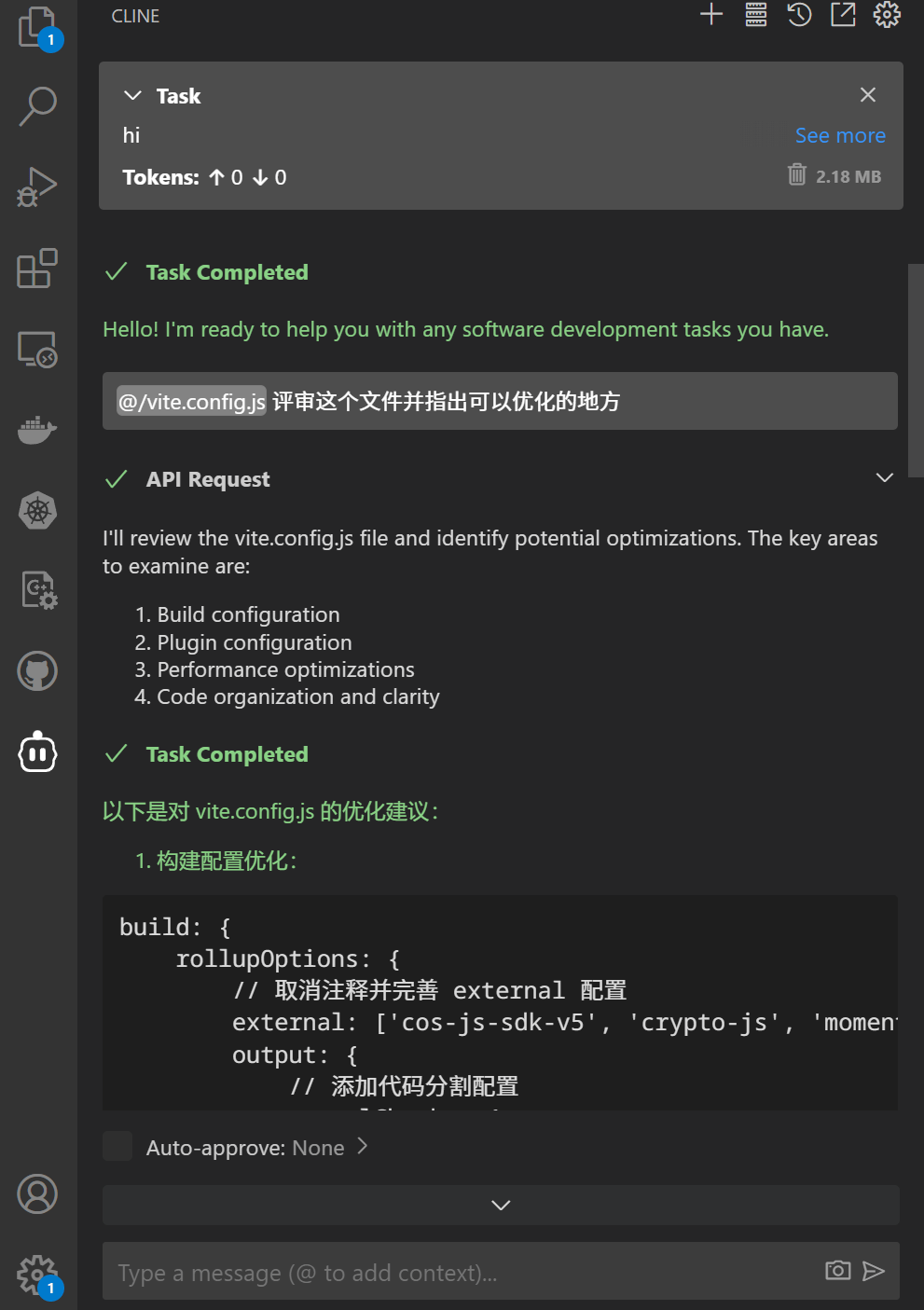
 配置完成后,点击 Let’s go 按钮,就可以通过极客智坊的模型代理服务在 VS Code 中使用 Cline 了:
 如果你想要显示推理模型的思考链,需要在 Cline API 配置界面点开模型配置(Model Configuration),勾选 Enable R1 messages format:
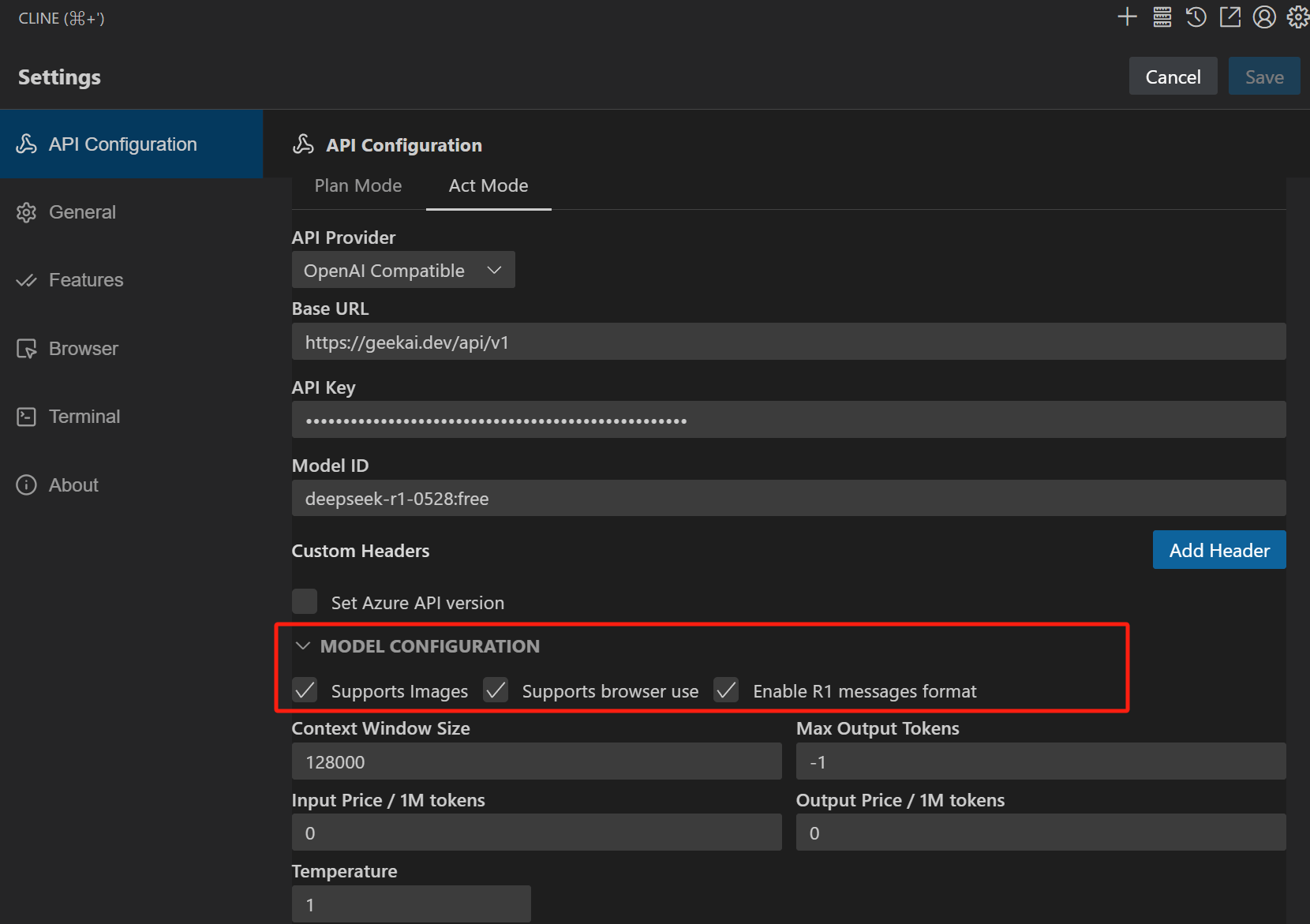
在 Model ID 中填入一个兼容 DeepSeek R1 的推理模型名称,例如 `deepseek-r1-0528:free`,然后点击 Save 按钮保存配置,下次对话就可以在 Cline 界面看到思考链输出了:
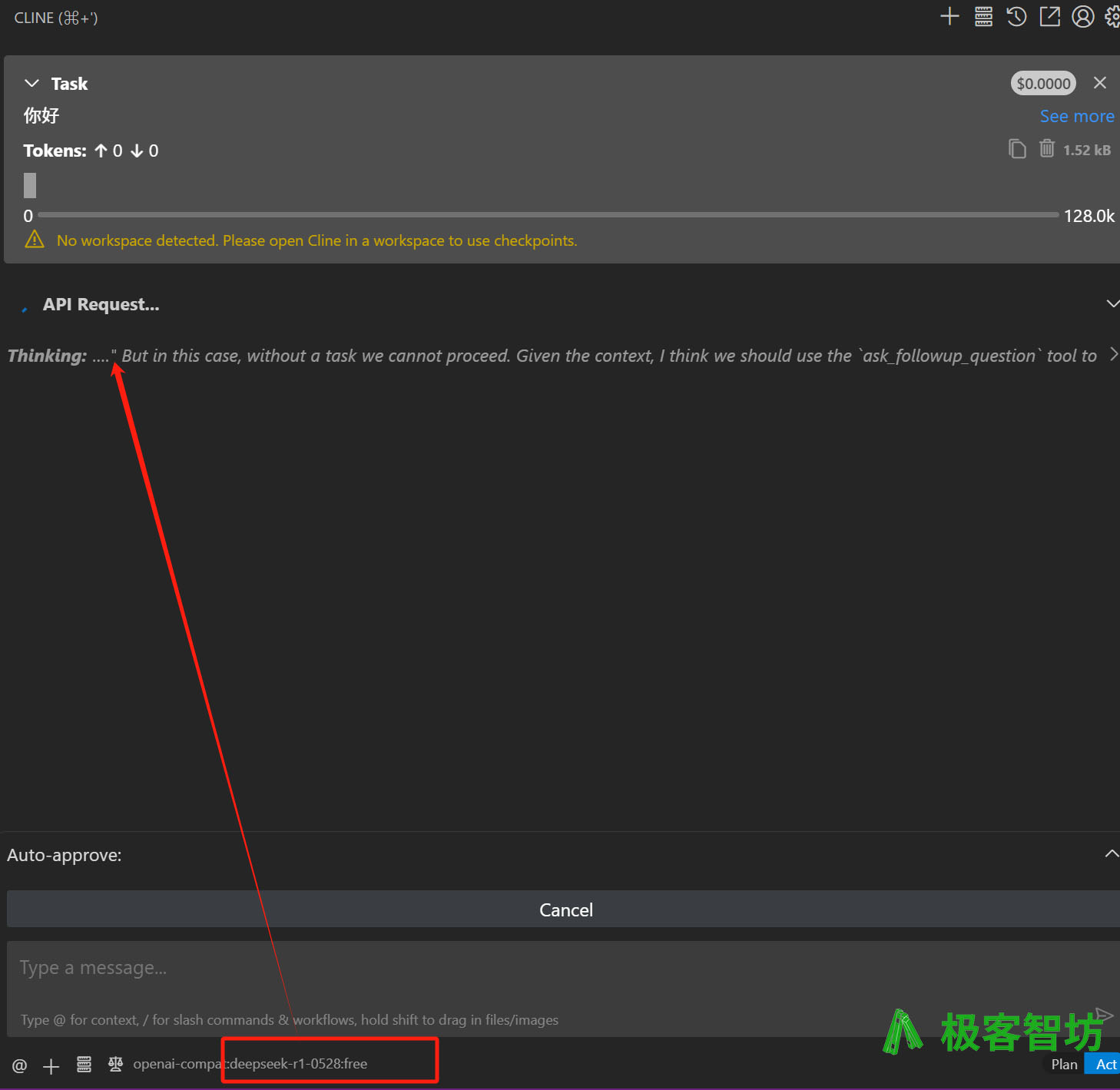
> 极客智坊所有[推理模型](https://docs.geekai.co/cn/docs/chat/reasoning)思考链输出均兼容 DeepSeek R1 格式,因此都可以在 Cline 中按照这种方式配置思考链输出。
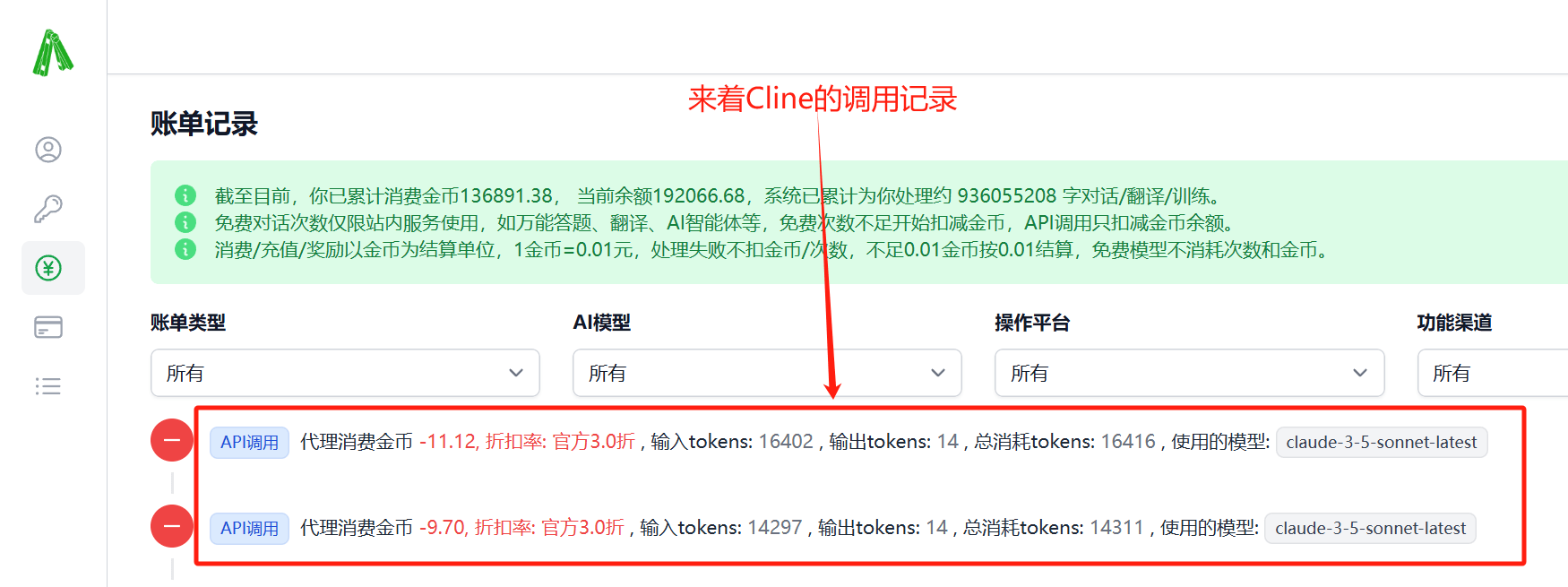
你可以在极客智坊后台[账单记录页面](https://geekai.co/user/transactions) 查看API消耗情况:
如果你想要显示推理模型的思考链,需要在 Cline API 配置界面点开模型配置(Model Configuration),勾选 Enable R1 messages format:

在 Model ID 中填入一个兼容 DeepSeek R1 的推理模型名称,例如 `deepseek-r1-0528:free`,然后点击 Save 按钮保存配置,下次对话就可以在 Cline 界面看到思考链输出了:

> 极客智坊所有[推理模型](https://docs.geekai.co/cn/docs/chat/reasoning)思考链输出均兼容 DeepSeek R1 格式,因此都可以在 Cline 中按照这种方式配置思考链输出。
你可以在极客智坊后台[账单记录页面](https://geekai.co/user/transactions) 查看API消耗情况:
 更多关于 Cline 的用法,可以参考[官方文档](https://docs.cline.bot/) 。