> ## Documentation Index
> Fetch the complete documentation index at: https://docs.geekai.co/llms.txt
> Use this file to discover all available pages before exploring further.
# Cursor
打开 [Cursor](https://www.cursor.com/)配置界面,填入极客智坊 API 接口 URL 和 API\_KEY:
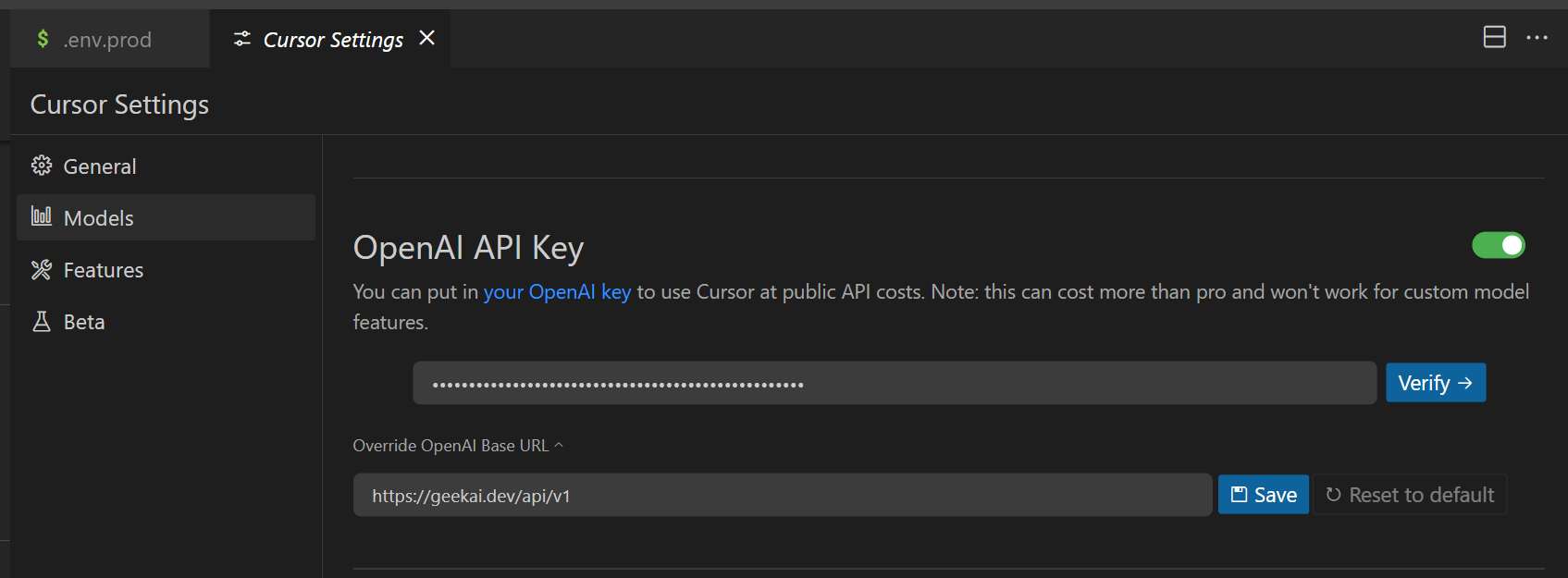 注意:接口 URL 后面要带 /v1 后缀。
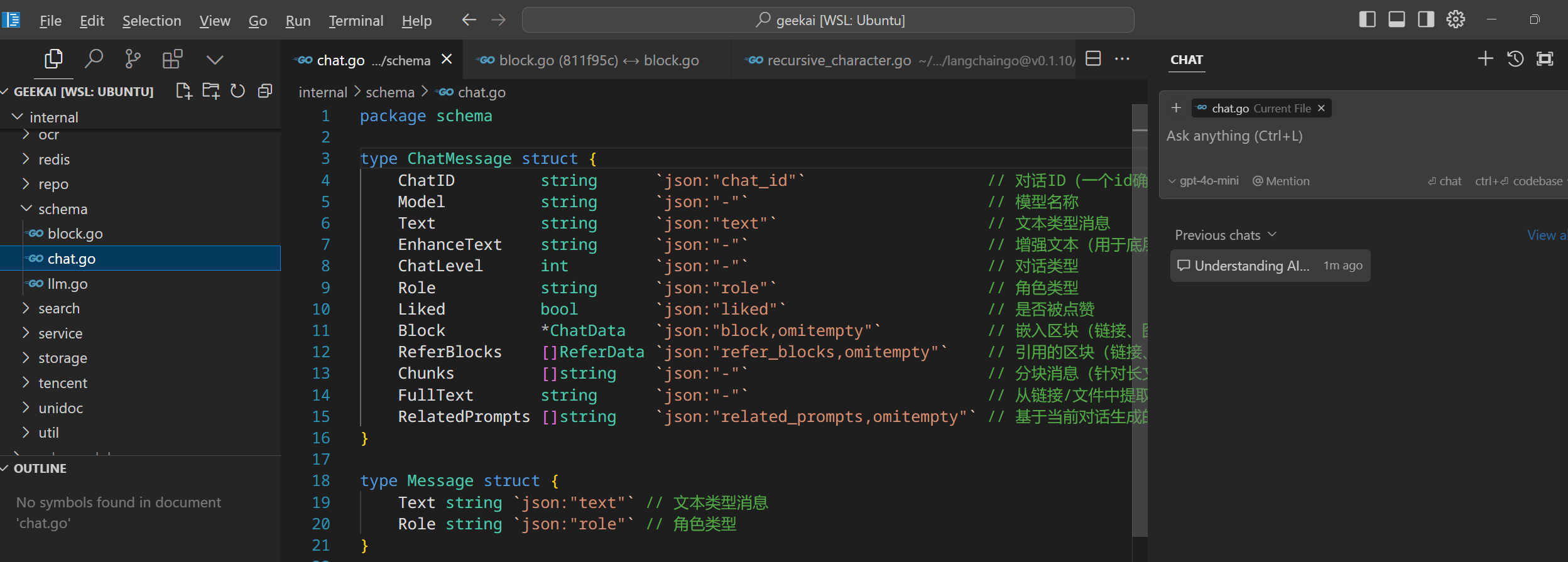
配置完成后,点击 Verify 进行验证,验证通过后保存设置,然后进入对话界面即可通过极客智坊代理 OpenAI 模型进行对话:
注意:接口 URL 后面要带 /v1 后缀。
配置完成后,点击 Verify 进行验证,验证通过后保存设置,然后进入对话界面即可通过极客智坊代理 OpenAI 模型进行对话:
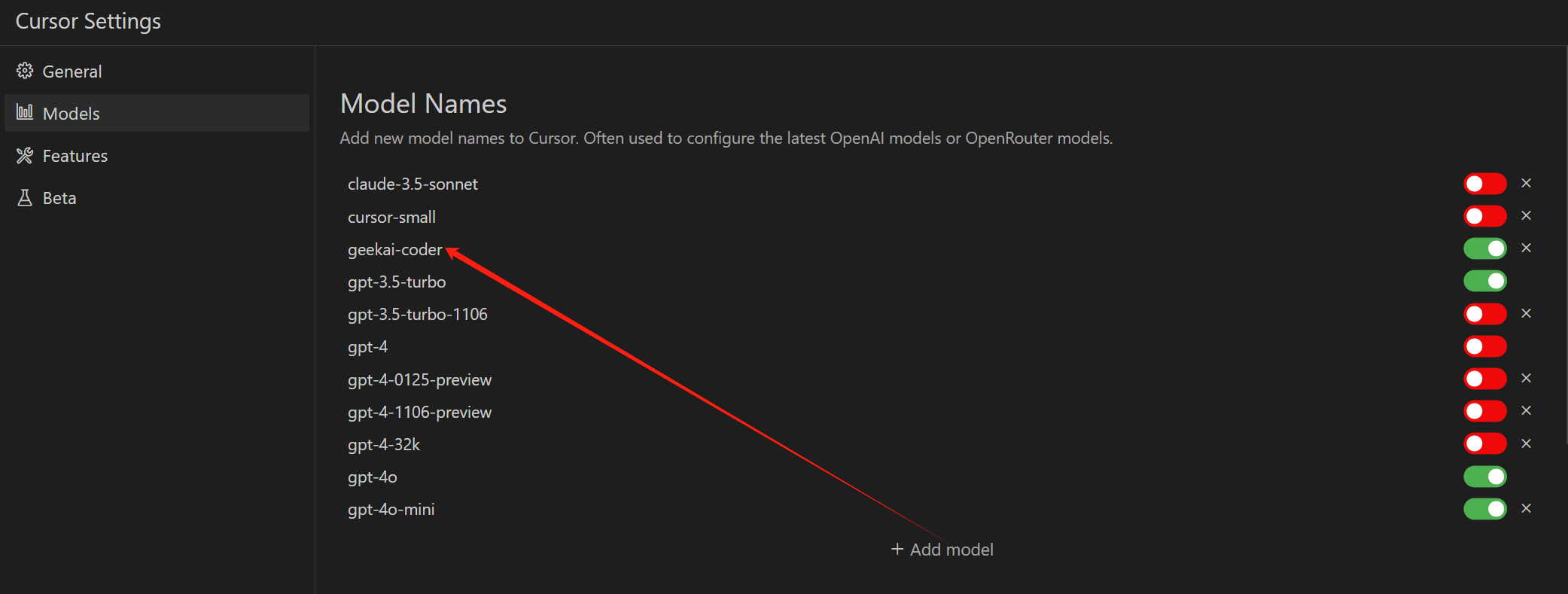
 如果你觉得其他模型编写代码质量更高,比如 Claude Sonnet 4.0,但 Cursor 不支持自定义 Claude 请求 URL,这可以通过自定义模型 `geekai-coder` 进行转发来达到曲线救国的效果:
 极客智坊在接收到该模型请求时,会自动转发到 Claude Sonnet 4.0 标准版接口,所以你可以在 Cursor 中直接使用:
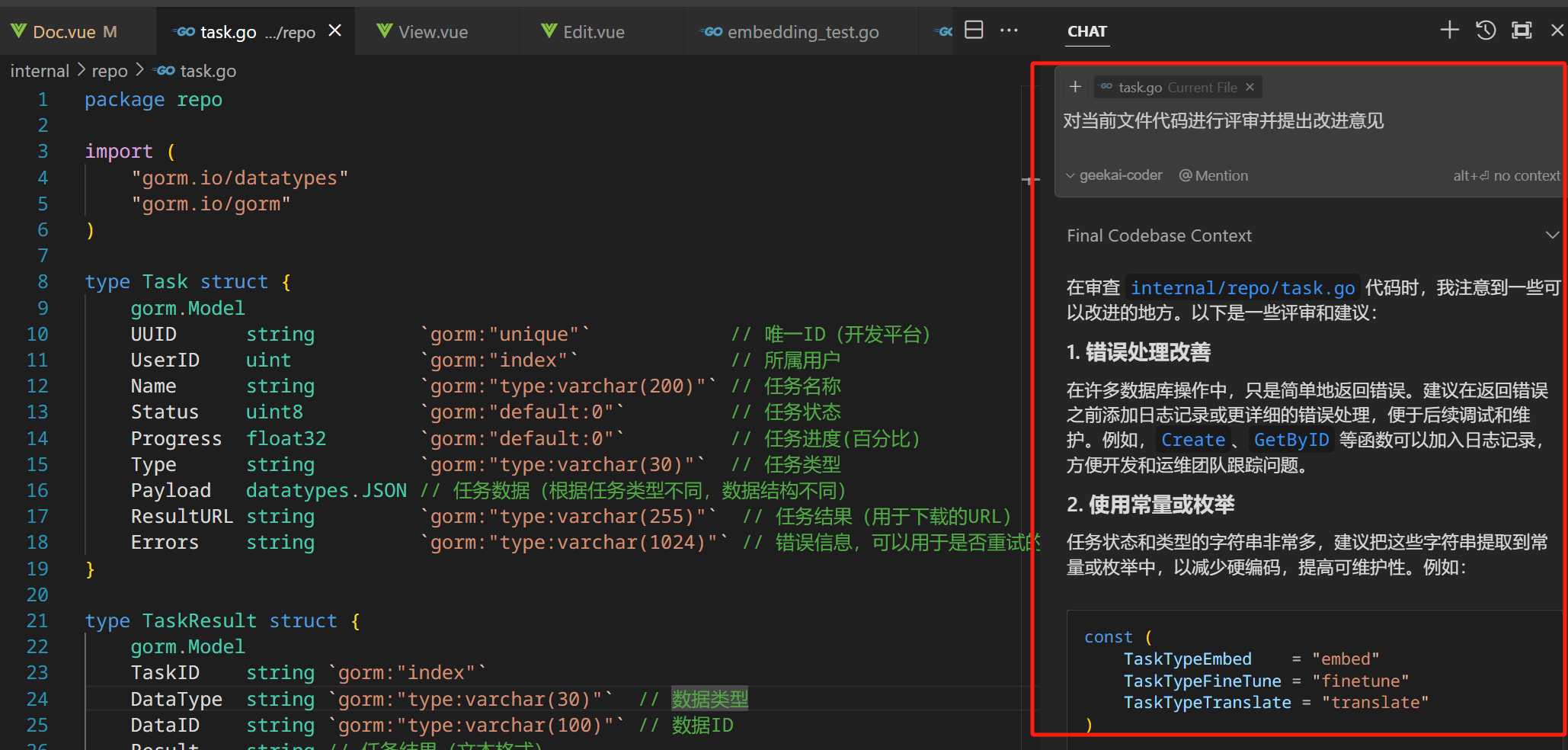 > 另外,极客智坊提供了 `geekai-coder-thinking` 别名指向 Claude Sonnet 4 推理版,以及 `geekai-3-5-coder`、`geekai-3-7-coder` 别名指向 Claude Sonnet 3.5 和 Claude Sonnet 3.7 模型,方便用户选用。