> ## Documentation Index
> Fetch the complete documentation index at: https://docs.geekai.co/llms.txt
> Use this file to discover all available pages before exploring further.
# LobeChat
打开 [LobeChat](https://lobechat.com/) 设置面板进入语言模型界面,在 OpenAI 选项卡填入极客智坊 API 接口 URL 和 API\_KEY:
 注意:不要勾选使用客户端请求模式,否则会连接失败。
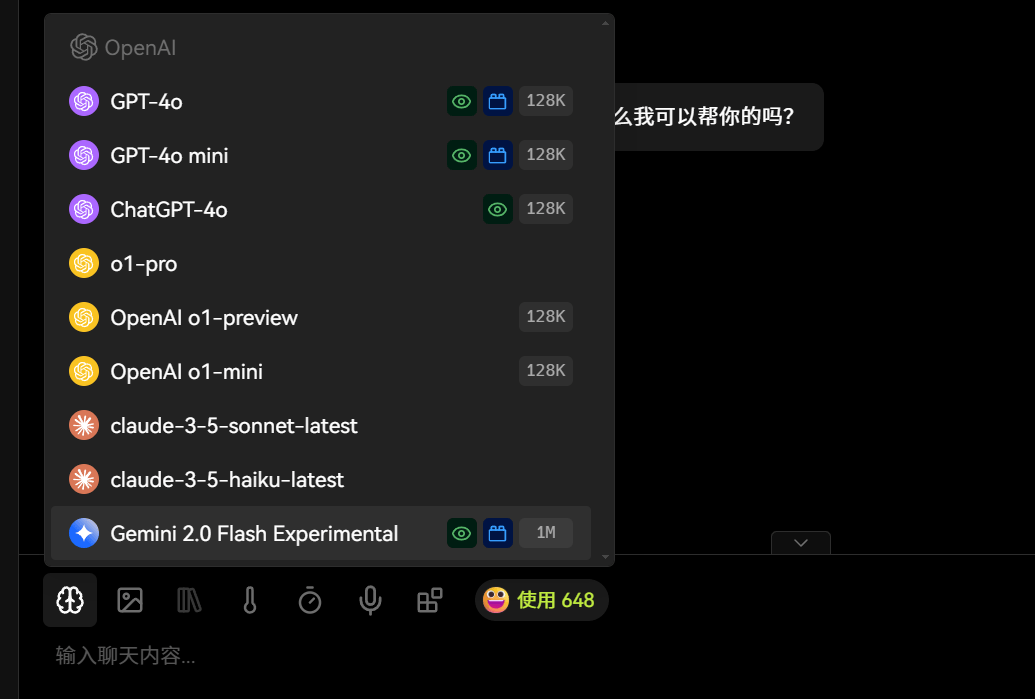
点击检查按钮,成功则表示可以正常连接,然后点击获取模型列表,选择你喜爱的模型用于在聊天对话界面显示:
注意:不要勾选使用客户端请求模式,否则会连接失败。
点击检查按钮,成功则表示可以正常连接,然后点击获取模型列表,选择你喜爱的模型用于在聊天对话界面显示:
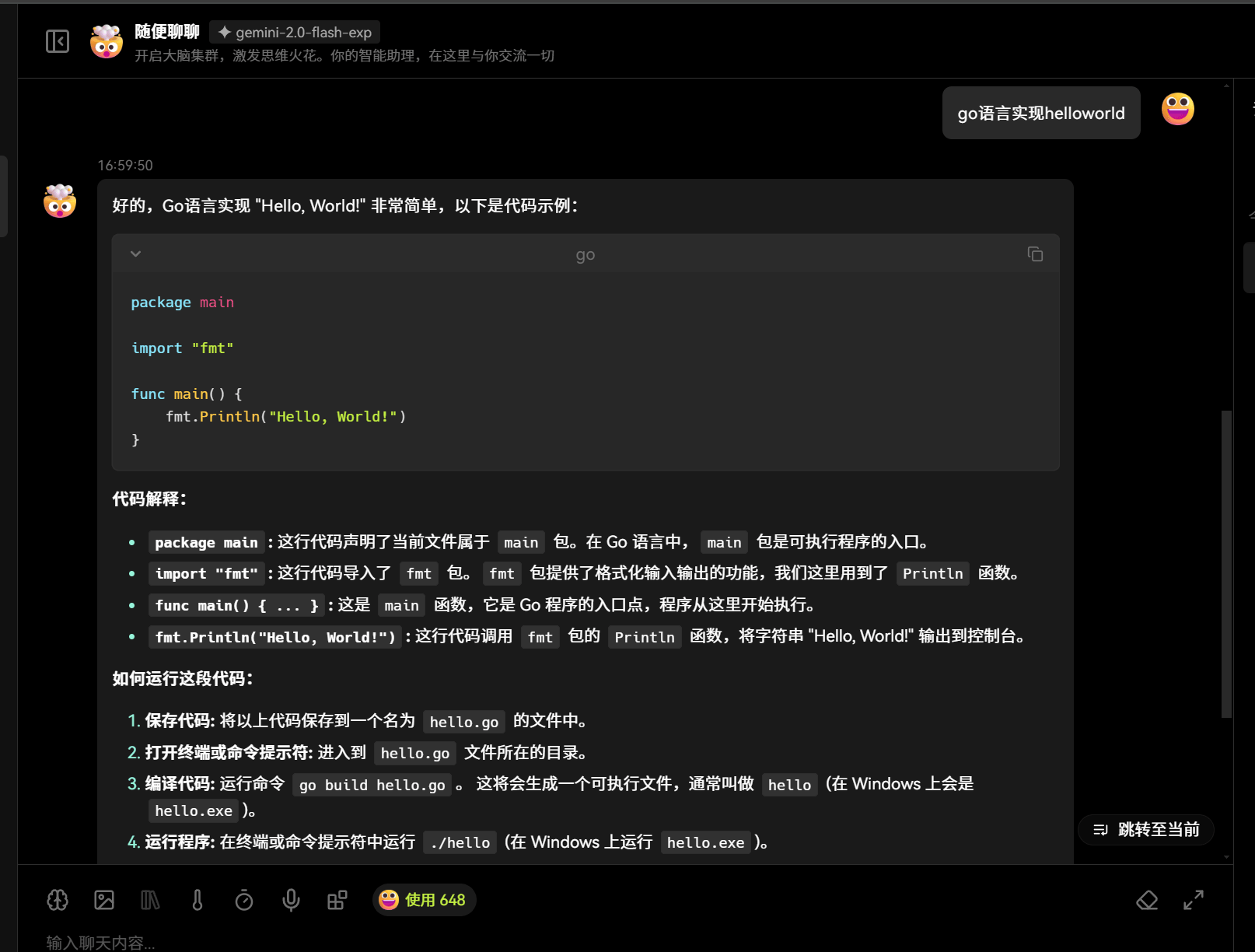
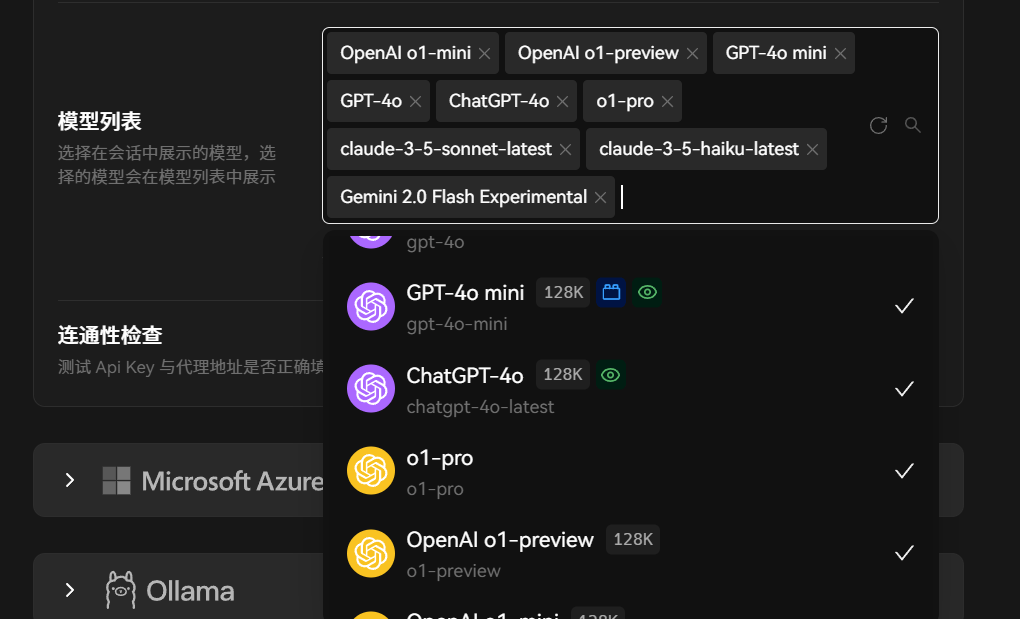 配置完成后会自动保存设置,进入 LobeChat 对话聊天界面,就可以通过极客智坊代理的 AI 模型进行对话了: