> ## Documentation Index
> Fetch the complete documentation index at: https://docs.geekai.co/llms.txt
> Use this file to discover all available pages before exploring further.
# Cursor
Open the [Cursor](https://www.cursor.com/) configuration interface and fill in the GeekAI API URL and API\_KEY:
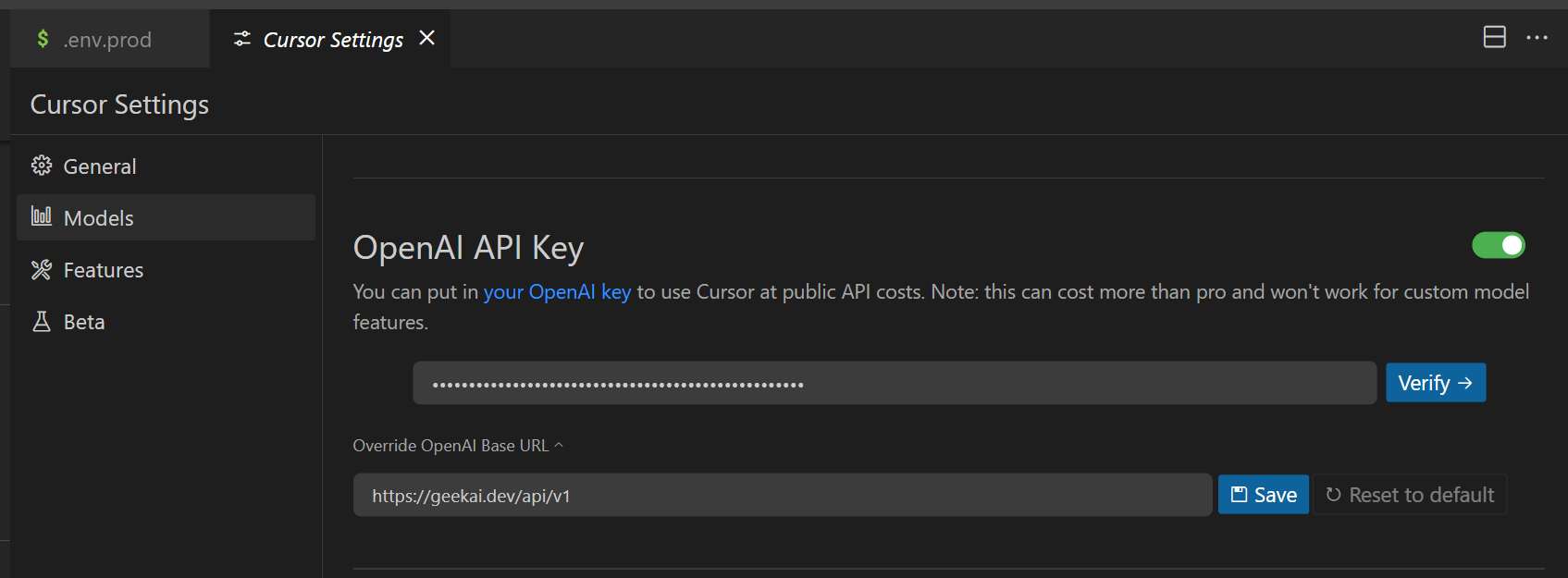 Note: The API URL must include the `/v1` suffix.
After completing the configuration, click Verify to validate. Once verification is successful, save the settings. Then, enter the chat interface to interact through the OpenAI models proxied by GeekAI:
Note: The API URL must include the `/v1` suffix.
After completing the configuration, click Verify to validate. Once verification is successful, save the settings. Then, enter the chat interface to interact through the OpenAI models proxied by GeekAI:
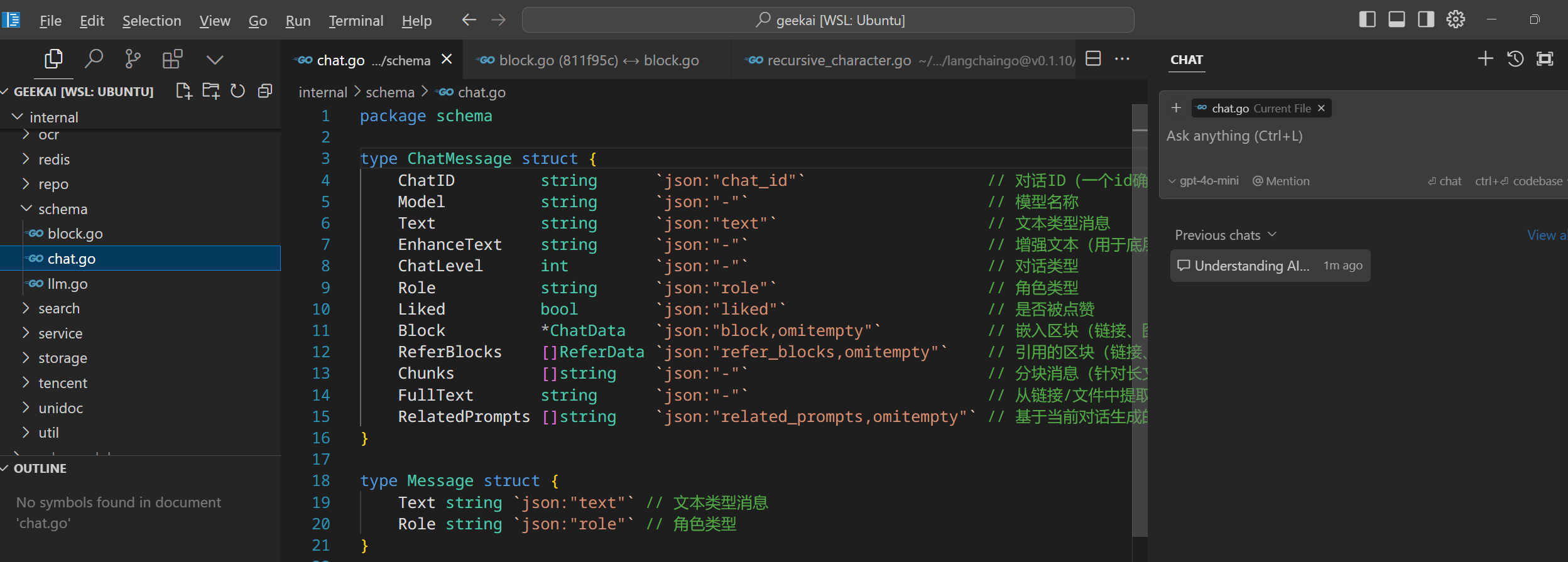 If you believe other models provide better code quality, such as Claude-3.5-Sonnet, but Cursor does not support custom Claude request URLs, you can achieve a workaround by using the custom model geekai-coder for forwarding:
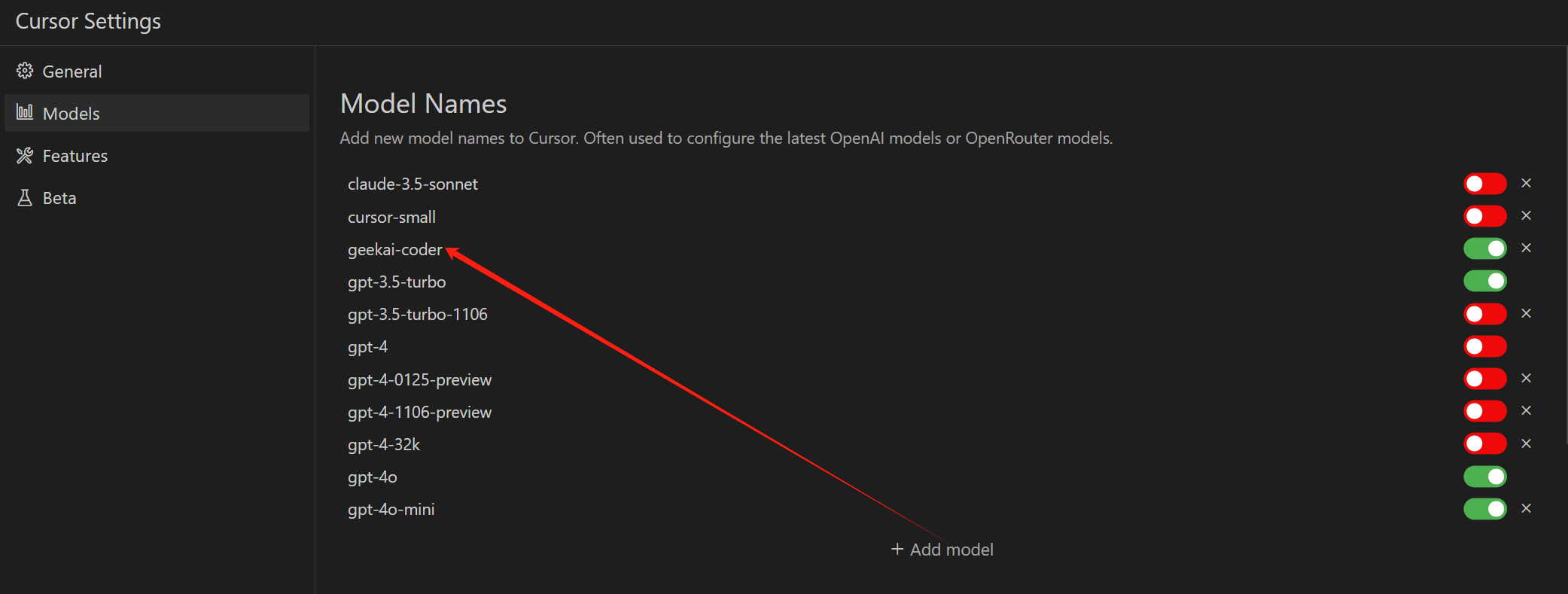 When GeekAI receives a request for this model, it will automatically forward it to the official Claude-3.5-Sonnet interface, allowing you to use it directly within Cursor: