> ## Documentation Index
> Fetch the complete documentation index at: https://docs.geekai.co/llms.txt
> Use this file to discover all available pages before exploring further.
# LobeChat
Open the [LobeChat](https://lobechat.com/) settings panel and navigate to the language model interface. On the OpenAI tab, fill in the GeekAI API URL and API\_KEY:
 Note: Do not check "Use client request mode," or the connection will fail.
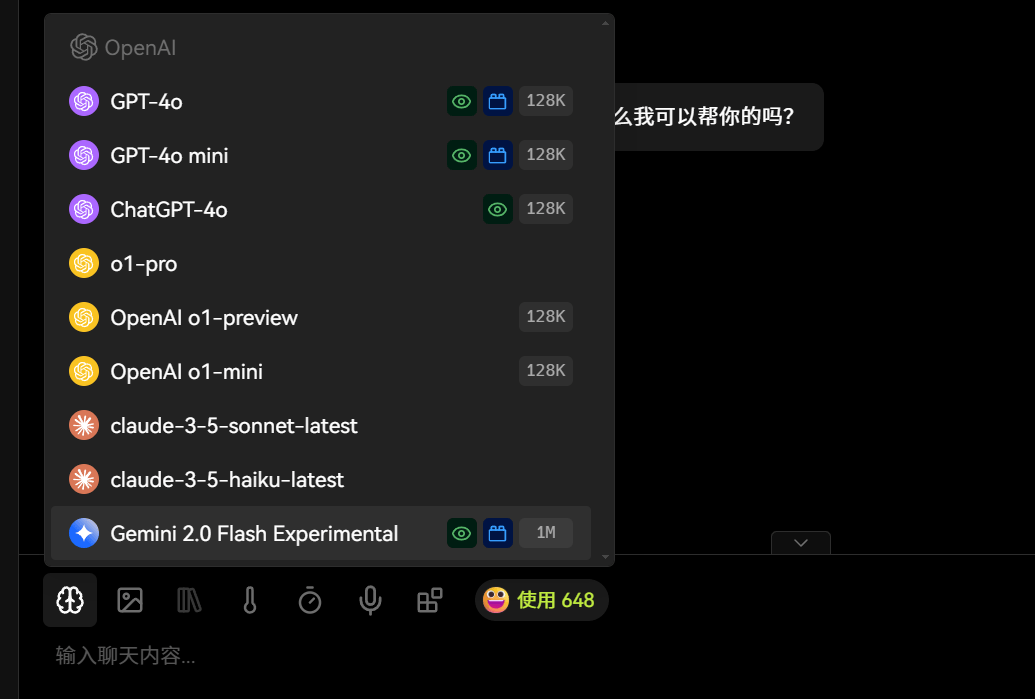
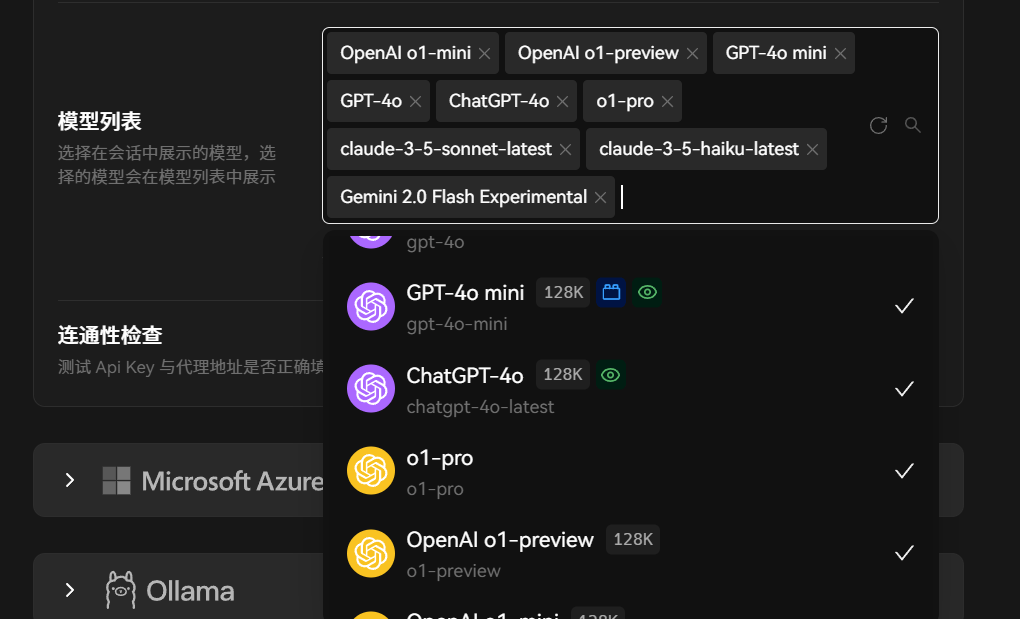
Click the check button. Success indicates a working connection. Then, click "Get Model List" and select your preferred models to display in the chat interface:
Note: Do not check "Use client request mode," or the connection will fail.
Click the check button. Success indicates a working connection. Then, click "Get Model List" and select your preferred models to display in the chat interface:
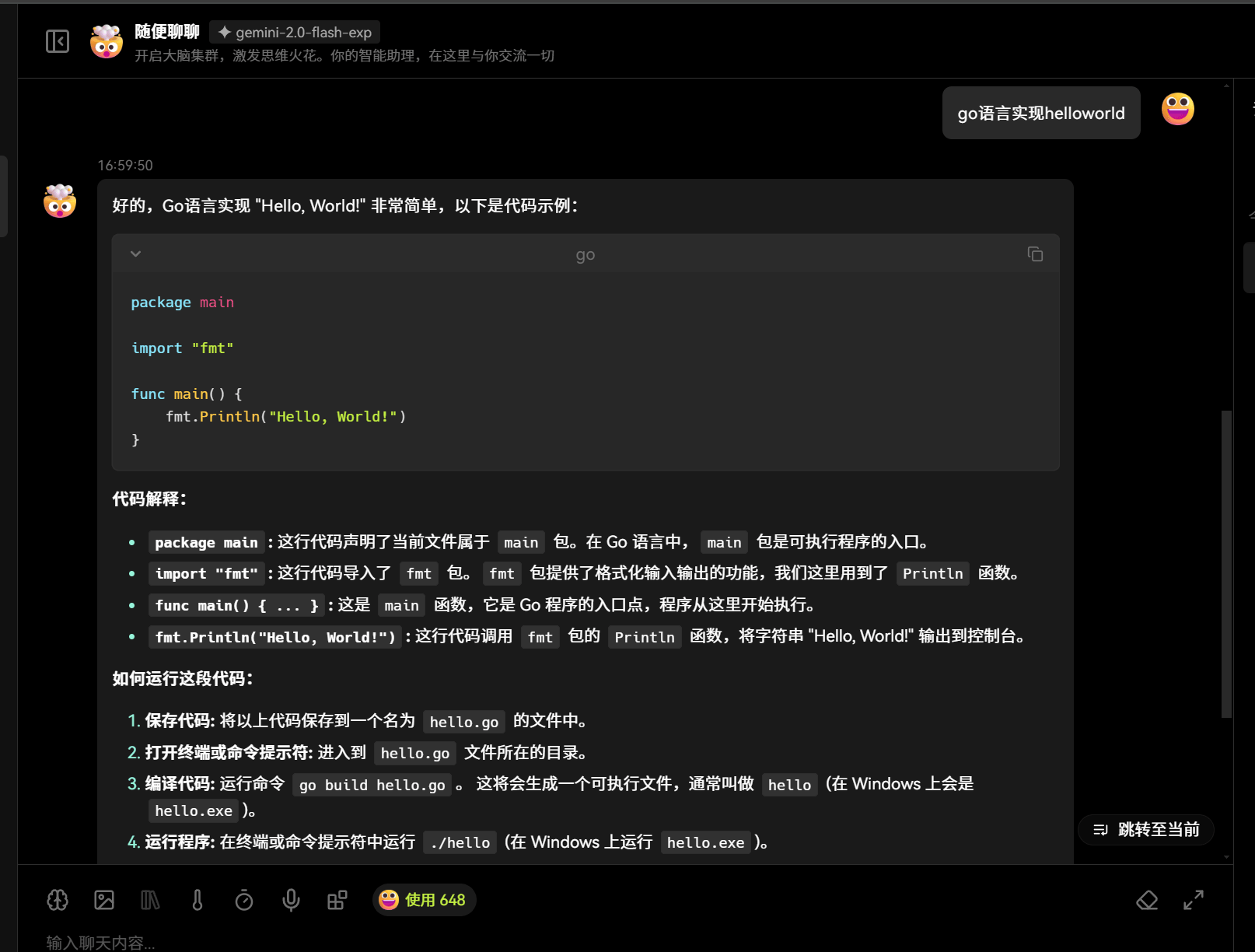
 The settings will be saved automatically after configuration. Enter the LobeChat conversation interface, and you can then interact with the AI models proxied by GeekAI: