> ## Documentation Index
> Fetch the complete documentation index at: https://docs.geekai.co/llms.txt
> Use this file to discover all available pages before exploring further.
# Open WebUI
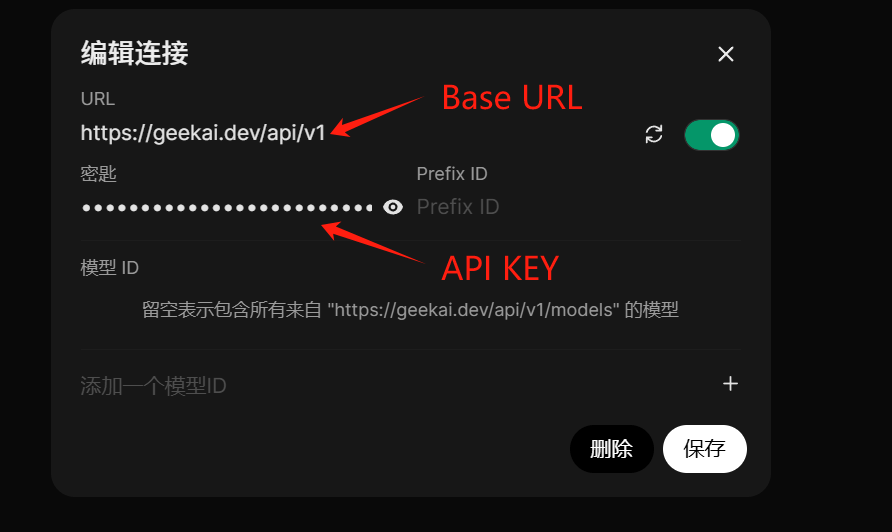
Open the configuration interface of the [Open WebUI application](https://open-webui.geekai.co/) maintained by GeekAI, or your own self-deployed Open WebUI application, and fill in the GeekAI model proxy Base URL and API\_KEY:
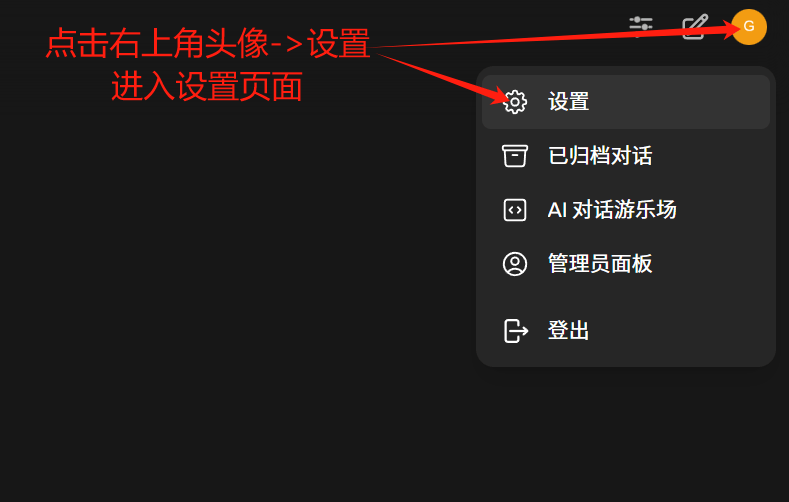
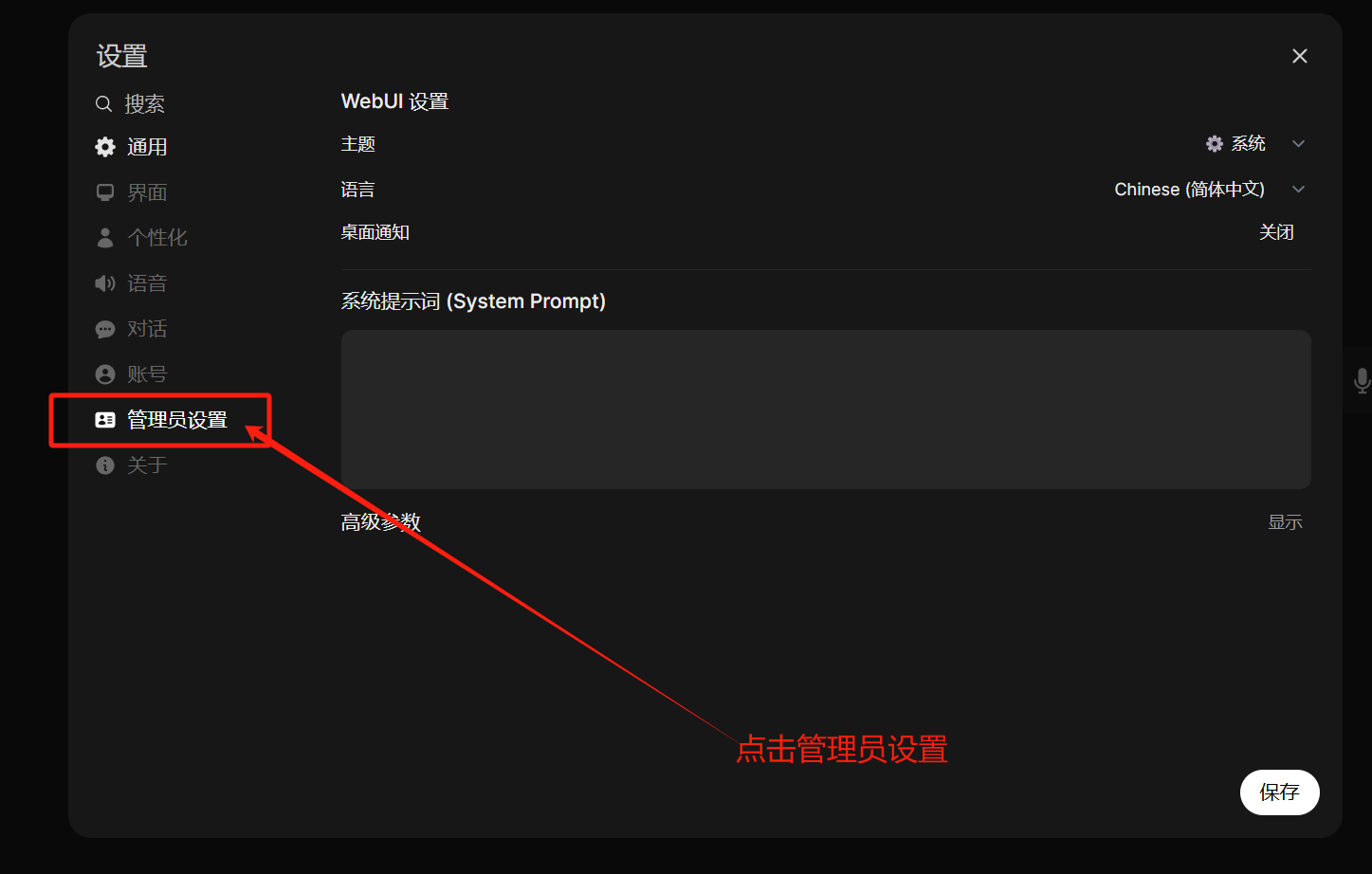
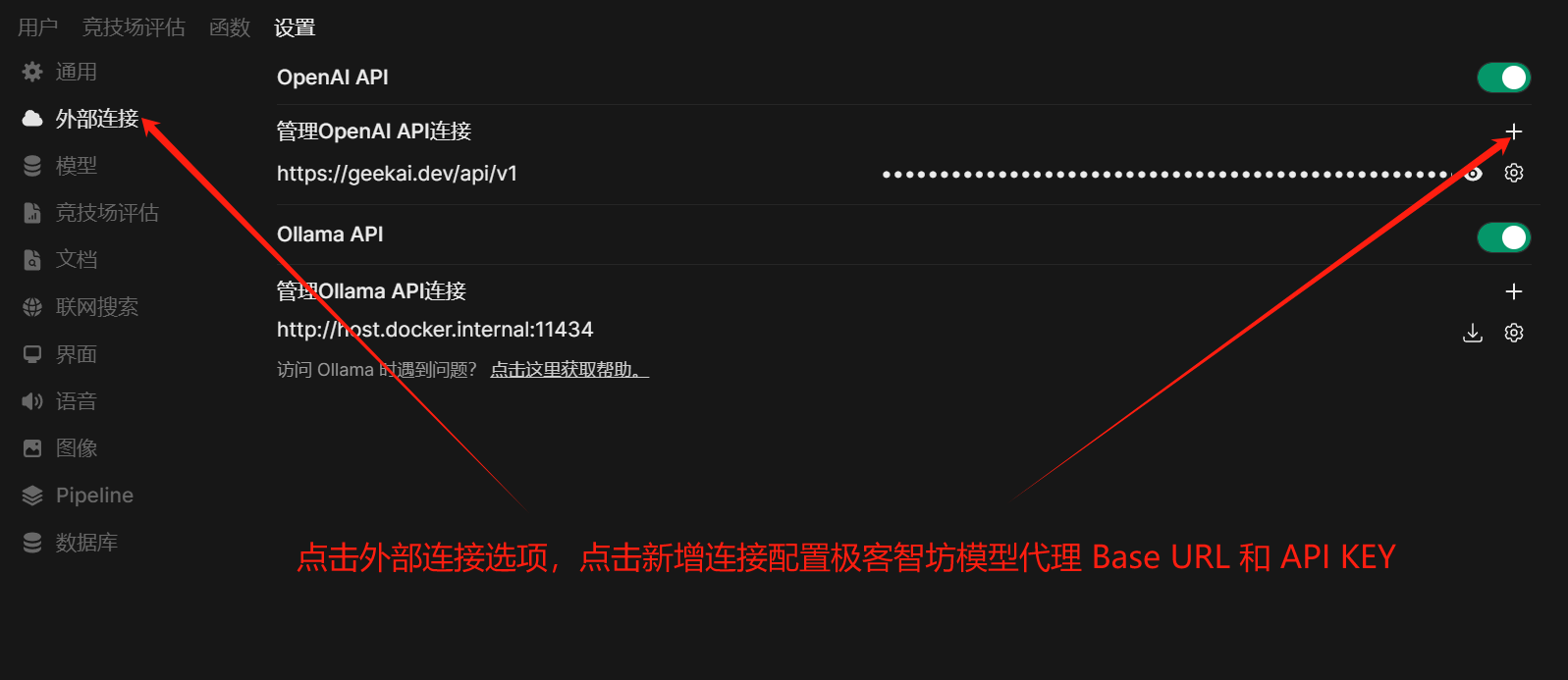
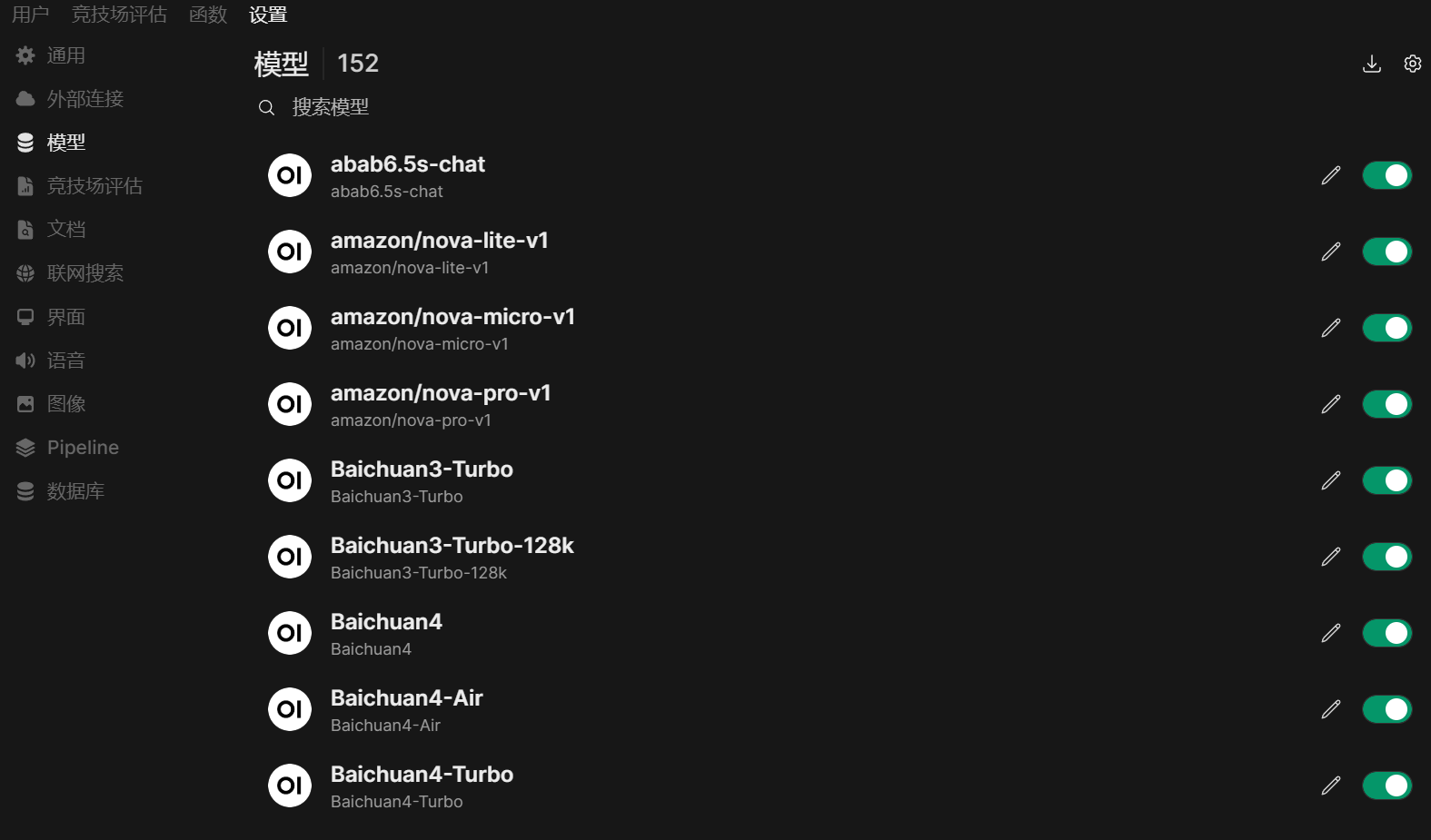
 After the configuration is complete, save the settings. You will then see all the proxy models supported by GeekAI in the model configuration interface, indicating successful configuration:
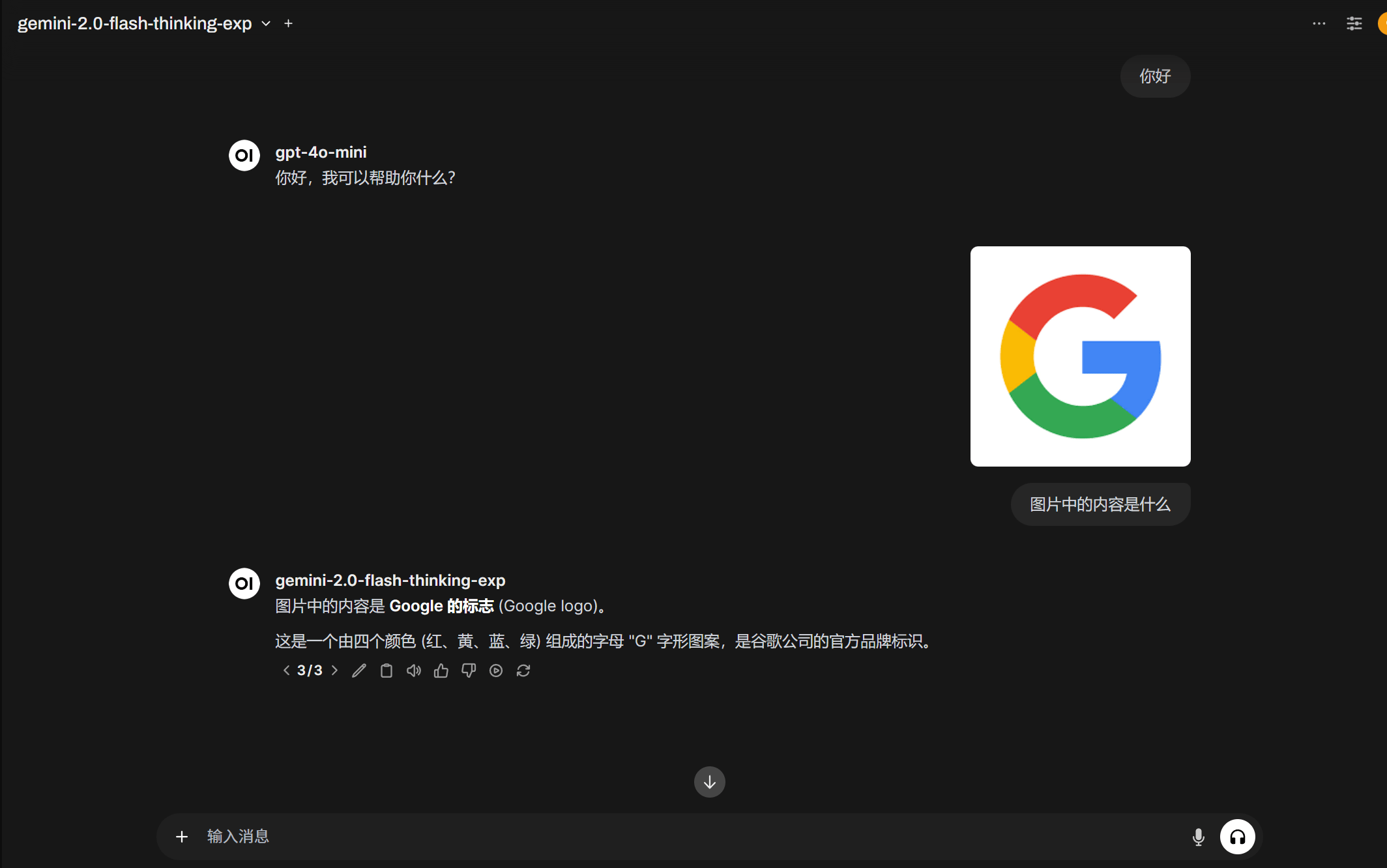
 Next, you can click the new conversation button in the upper left corner of the page to engage in AI conversations through the models proxied by GeekAI: