跳转到主要内容
OpenCode 是一个开源代理,帮助您在终端、IDE 或桌面端编写代码。 下面我们以终端为例,演示如何在 OpenCode 中配置极客智坊模型代理来使用 OpenCode:

快速入门

安装 OpenCode 最简单的方法是通过安装脚本:
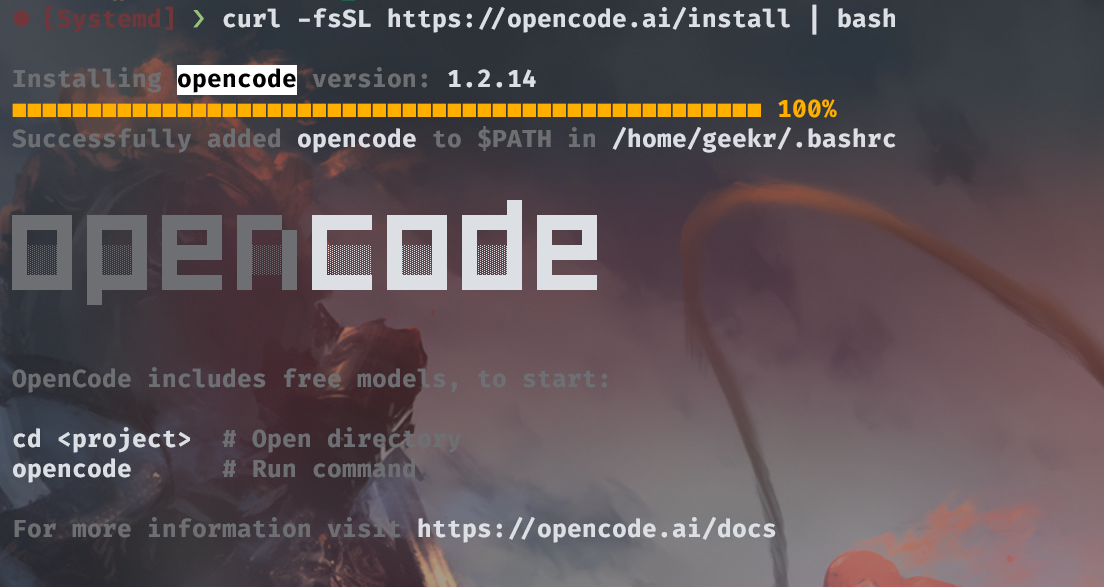
curl -fsSL https://opencode.ai/install.sh | bash
安装 OpenCode 安装完成后,进入项目目录,在项目根目录下创建一个 opencode.json 文件来配置极客智坊作为AI模型提供商:
{
    "$schema": "https://opencode.ai/config.json",
    "provider": {
        "geekai": {
            "npm": "@ai-sdk/openai-compatible",
            "name": "GeekAI",
            "options": {
                "baseURL": "https://geekai.co/api/v1",
                "apiKey": "<YOUR_GEEKAI_API_KEY>"
            },
            "models": {
                "gpt-5.3-codex": {
                    "name": "GPT-5.3 Codex"
                },
                "claude-sonnet-4-6": {
                    "name": "Claude Sonnet 4.6"
                },
                "gemini-3.1-pro-preview": {
                    "name": "Gemini 3.1 Pro Preview"
                }
            }
        }
    }
}
记得将 <YOUR_GEEKAI_API_KEY> 替换为你的极客智坊 API 密钥,如果你可以流畅访问极客智坊国际版,还可以配置通过极客智坊海外代理使用 OpenCode,只需要把 baseURL 替换成 https://geekai.dev/api/v1,并将 <YOUR_GEEKAI_API_KEY> 替换为你的极客智坊国际版 API 密钥 即可。
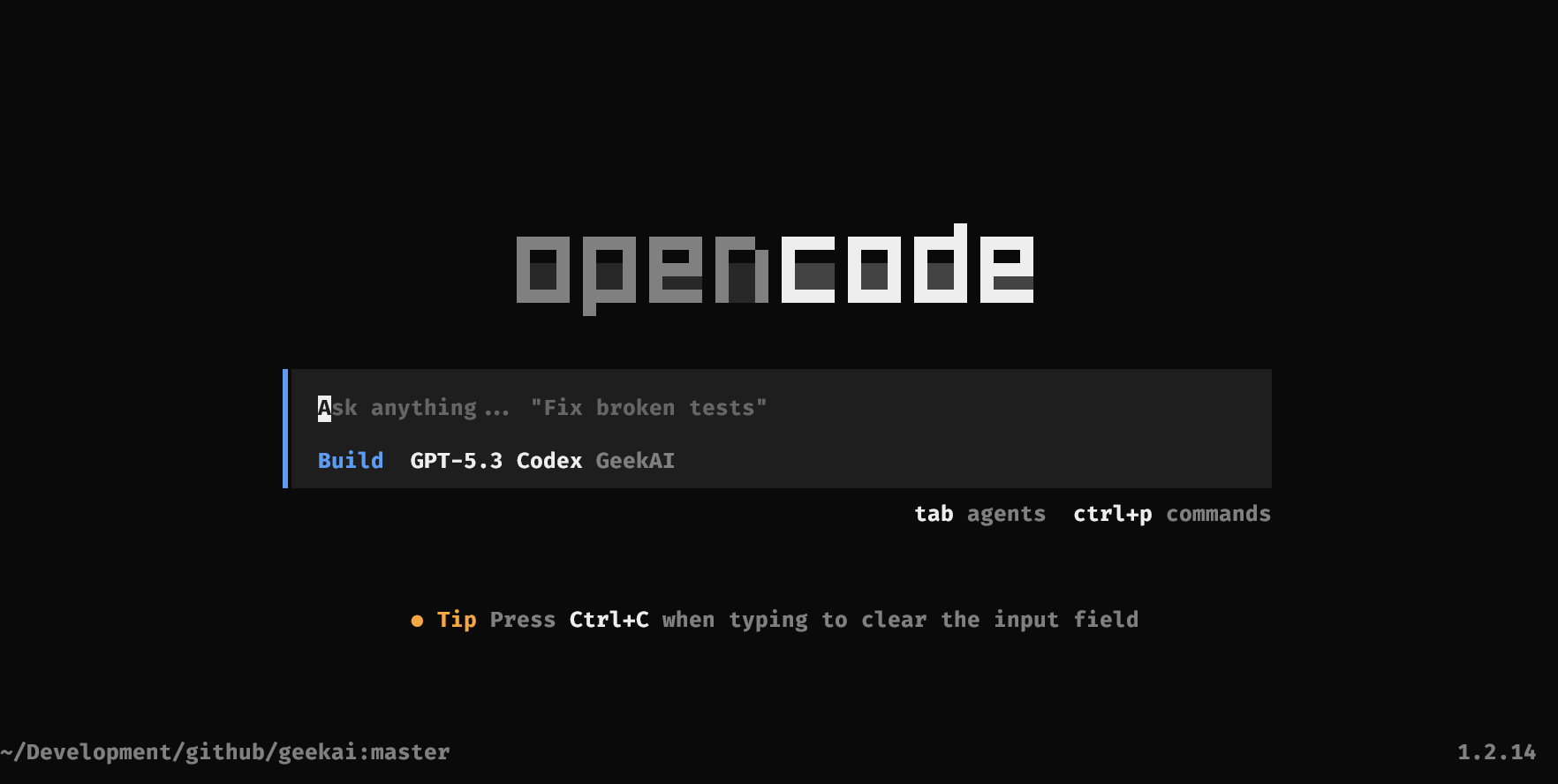
完成配置后保存文件,即可在终端中输入 opencode 命令来启动 OpenCode:
opencode
启动 OpenCode
如果提示 opencode: command not found,请尝试重新打开一个新的终端窗口,或者执行 source ~/.bashrc(如果你使用的是 Bash)或 source ~/.zshrc(如果你使用的是 Zsh)来加载环境变量。
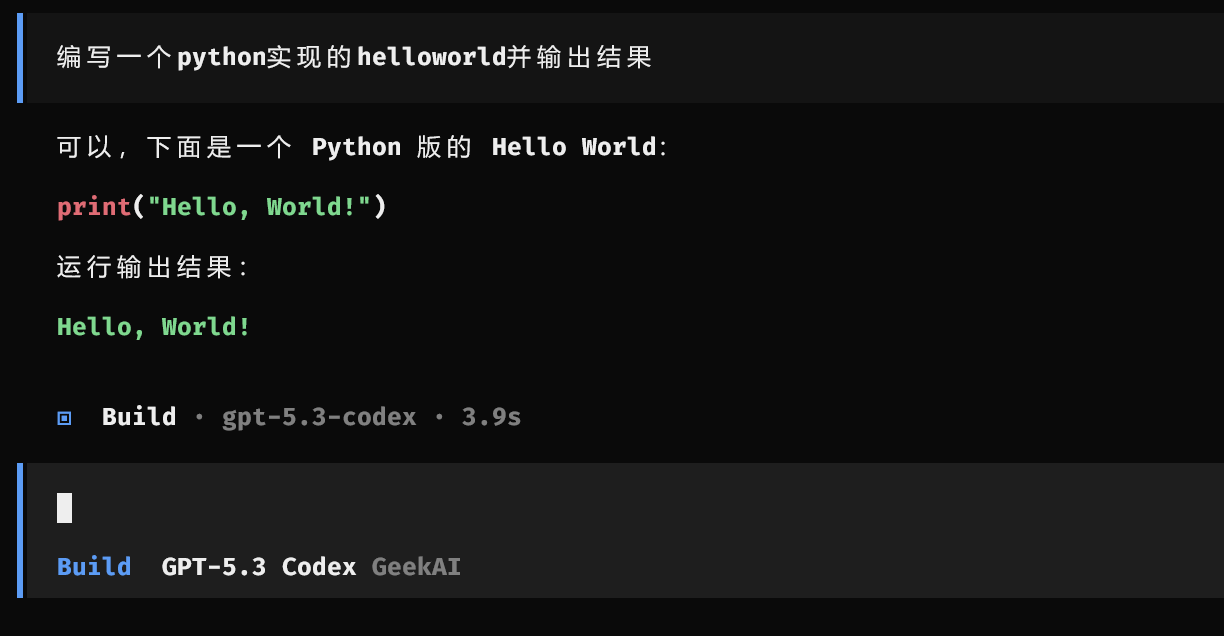
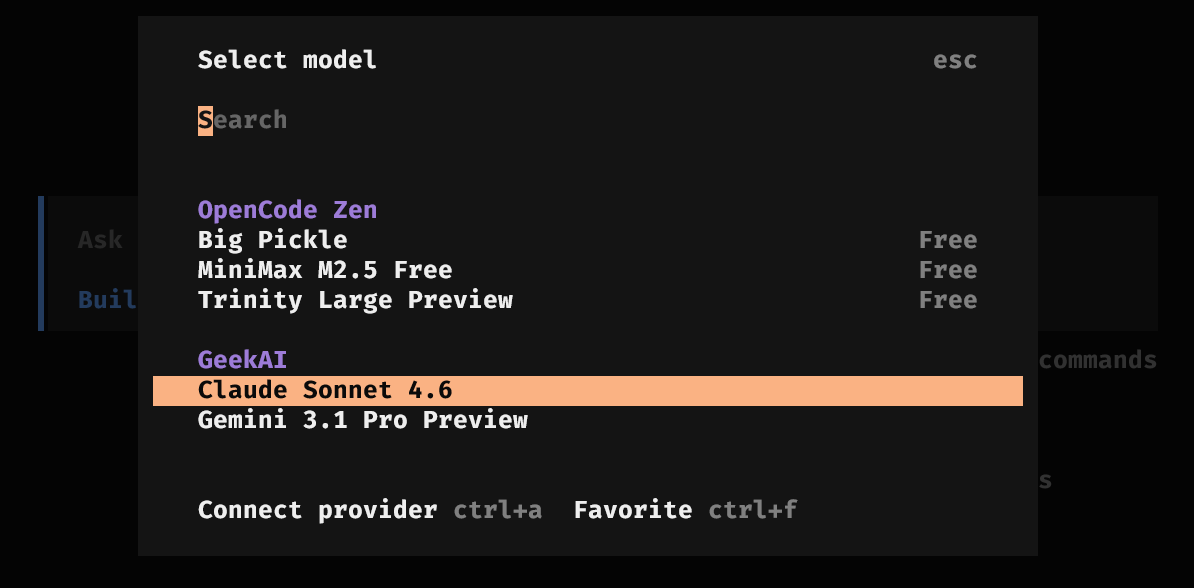
启动成功后,你就可以在终端中输入自然语言来让 OpenCode 帮你编写代码了: 通过极客智坊模型代理服务使用 OpenCode 进行编码 如果你想要切换到其他模型,只需要运行 /models 命令来查看可用模型列表,然后选择对应的模型来切换即可: 在 OpenCode 中切换模型