
- Switch API provider configurations with one click.
- Share provider settings across applications.
- Check usage and remaining balance.
- Add common providers using preset templates.
- Manage Model Context Protocol (MCP) servers.
- Save and switch system prompts for different tasks.
- Install and manage skills.
- Windows 10 or later
- macOS 12 (Monterey) or later
- Ubuntu 22.04+ / Debian 11+ / Fedora 34+ (x64 / ARM64)
 The navigation bar lets you configure each CLI separately. The following examples connect Codex, Claude Code, and Gemini CLI to GeekAI.
Select Codex, then click + in the upper-right corner to add a provider.
Select the custom configuration and enter a provider name, API key, base URL, and model name:
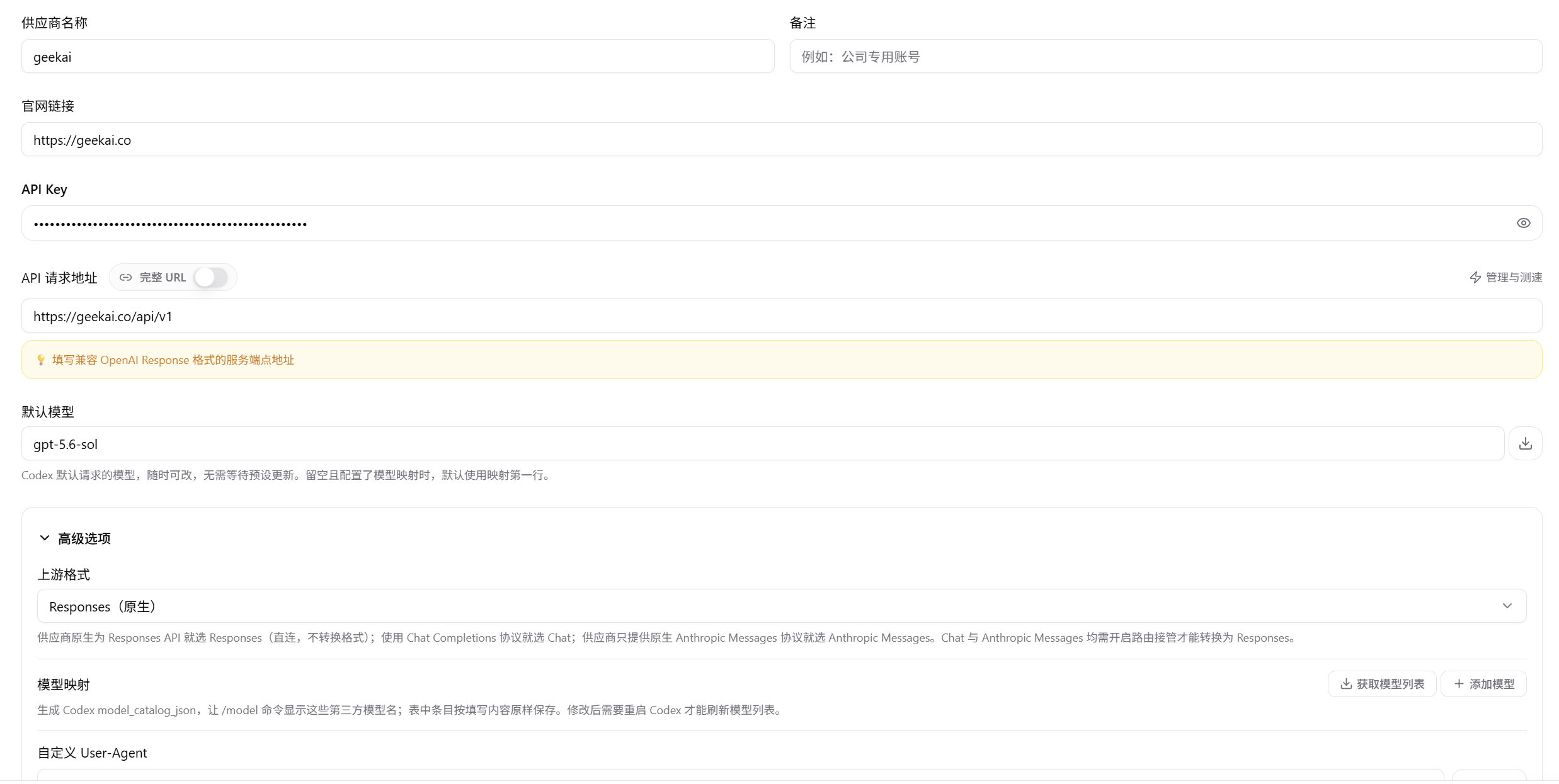 CC Switch generates the corresponding
config.toml:
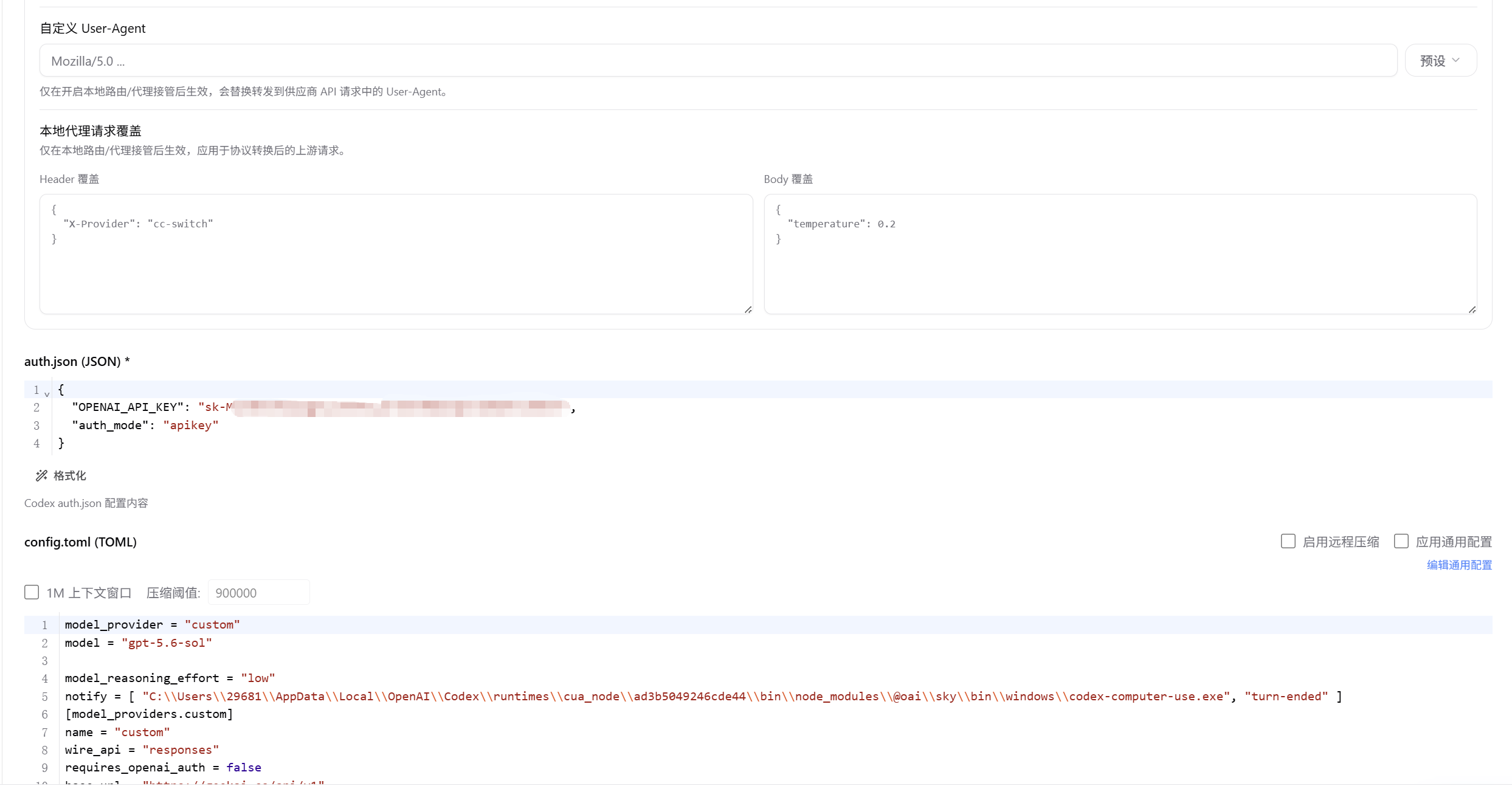 Click Add to save the provider:
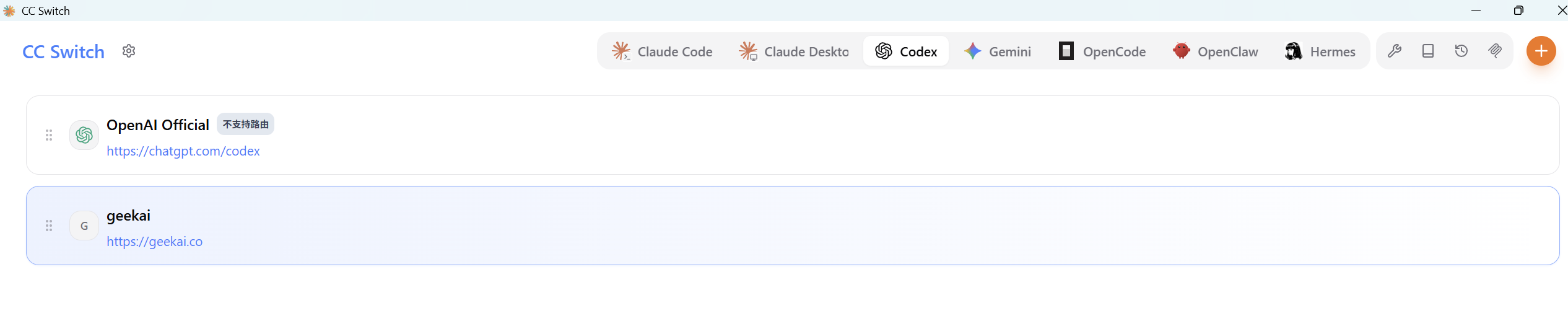 Find the provider in the list and test it before use:
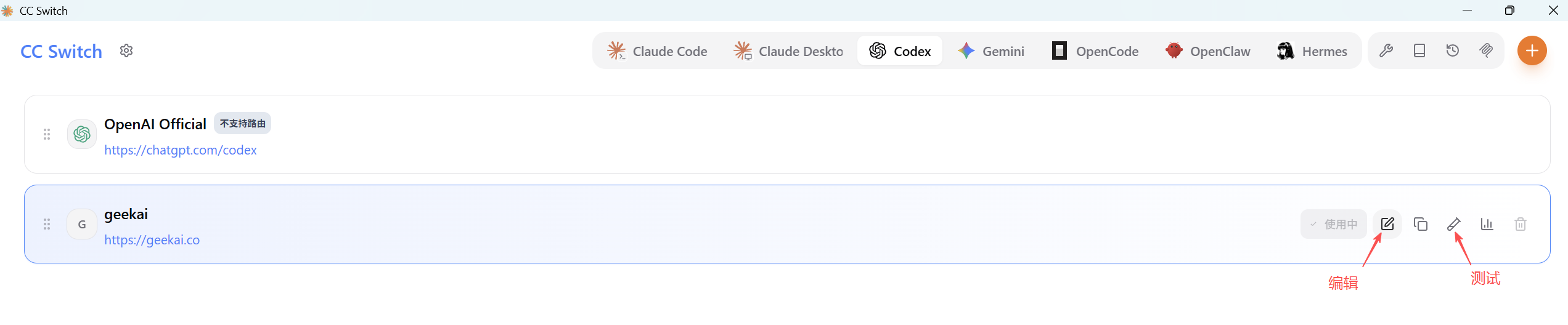 Use Edit to change the model or its parameters, and Test to check that the provider is reachable.
If you have multiple providers, hover over the one you want and click Enable to switch to it.
Start Codex and send a request to verify the configuration:
 Check your billing history for the corresponding charge:
 You can add Claude Code and Gemini CLI providers in the same way.
Select Claude Code and click + in the upper-right corner.
Enter the provider name, API key, base URL, and model name. Omit the trailing slash from the API URL.
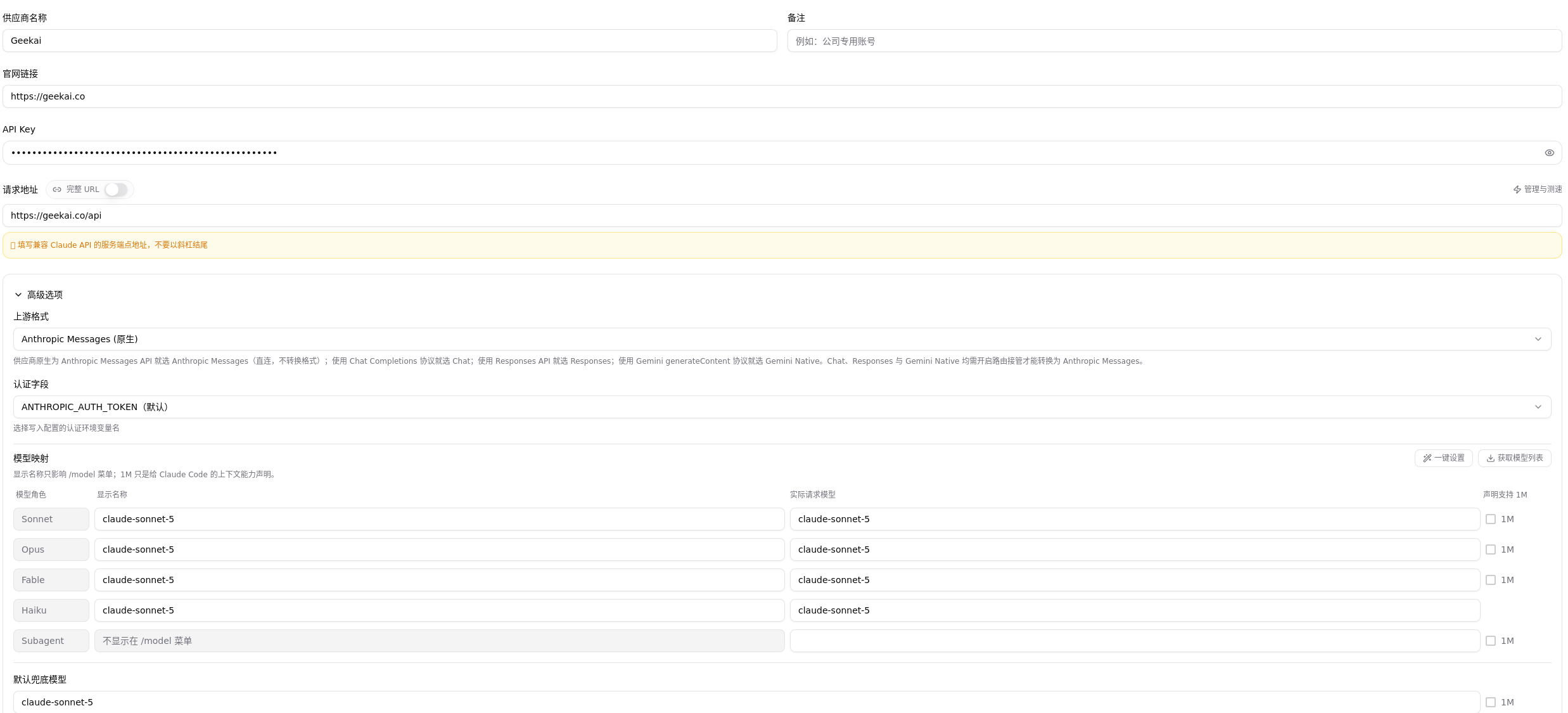
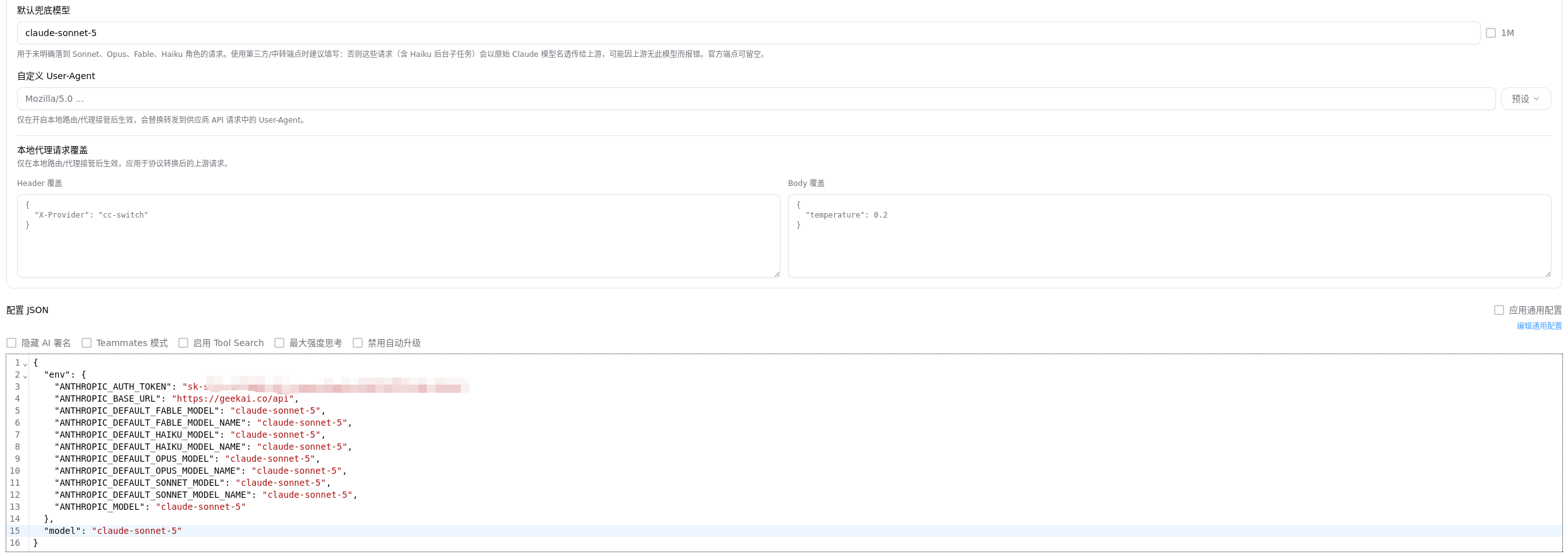
For the Messages API, use
https://geekai.co/api without /v1.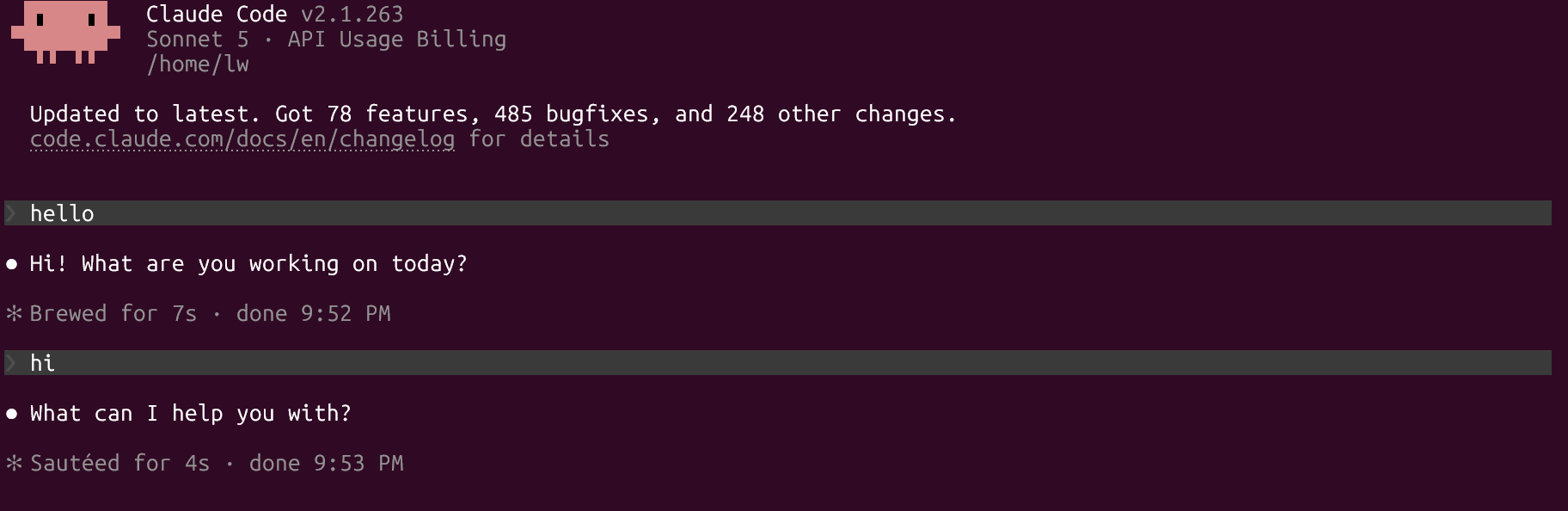 Select Gemini CLI and follow the same steps to add and test its provider:
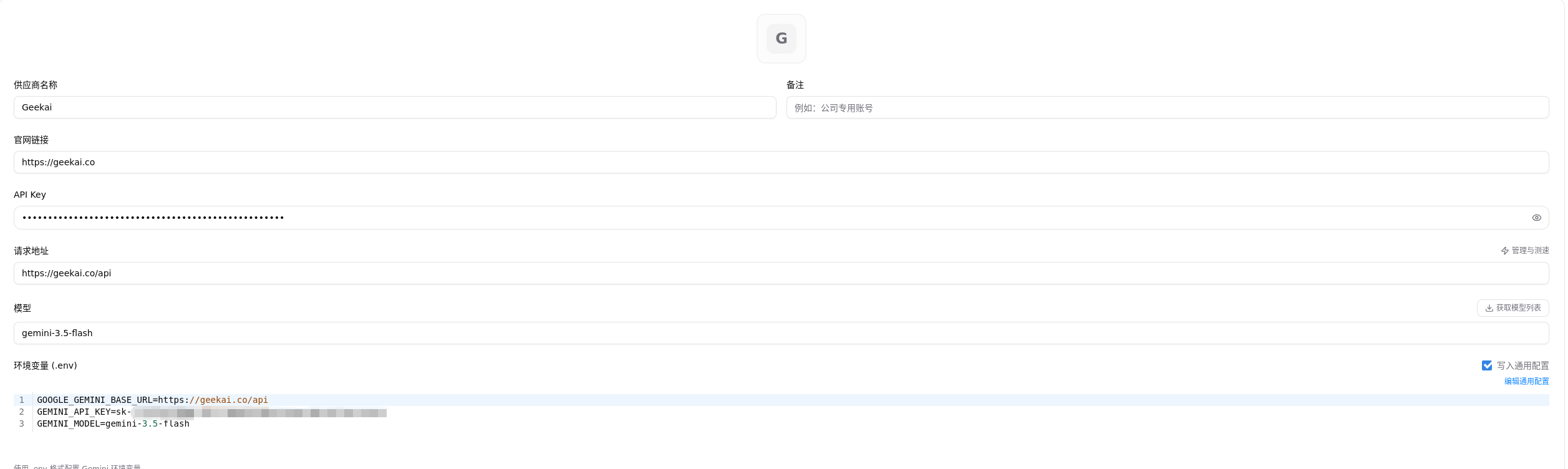
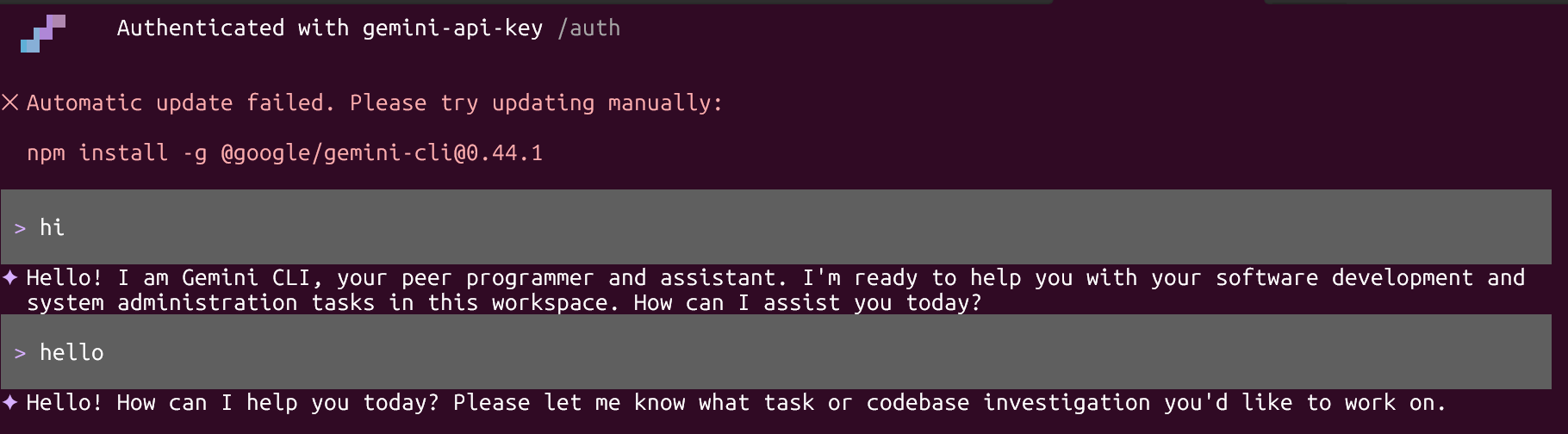
Use
https://geekai.co/api as the base URL without /v1.