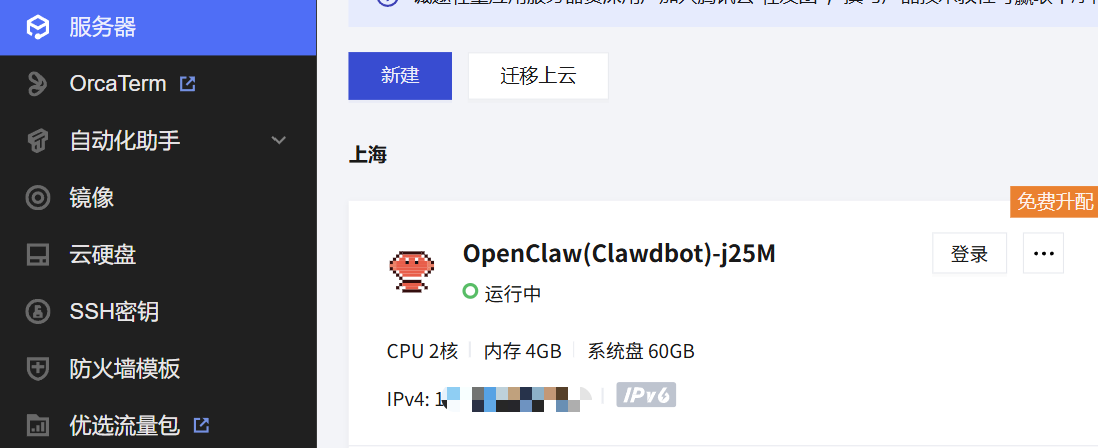
 Open the instance and select Application Management. In Models, choose a custom model and enter the GeekAI connection settings as shown:
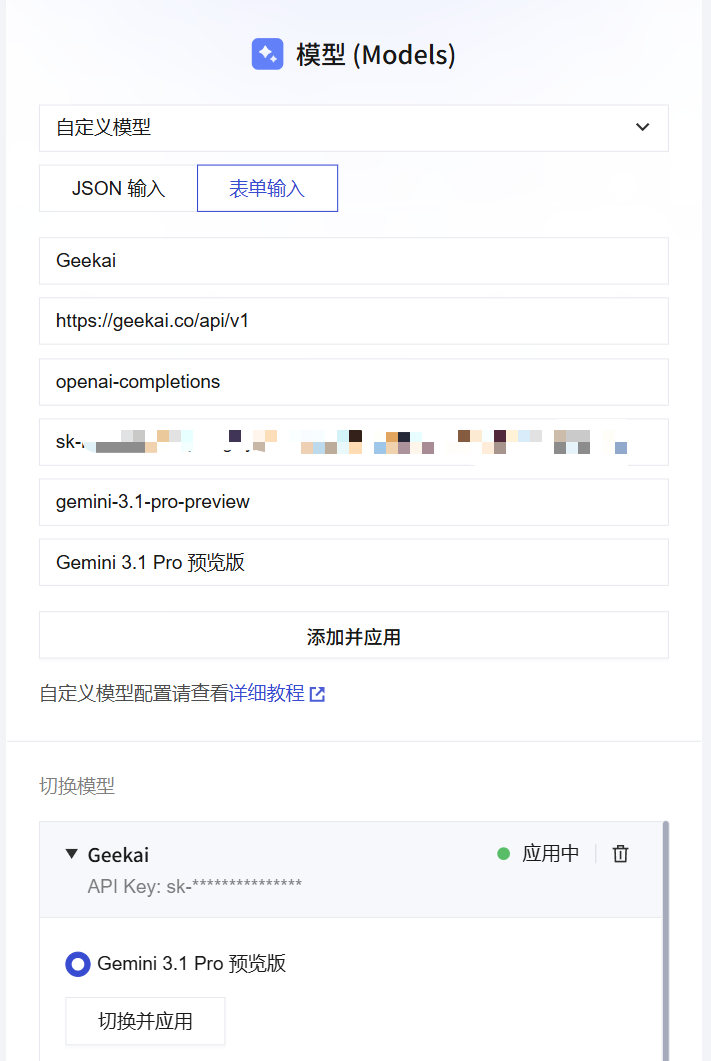 Click Add and Apply to save the provider.
The following example connects the deployed instance to WeCom.
Sign in to WeCom as an enterprise administrator. Under Security and Management → Management Tools, select Intelligent Bots.
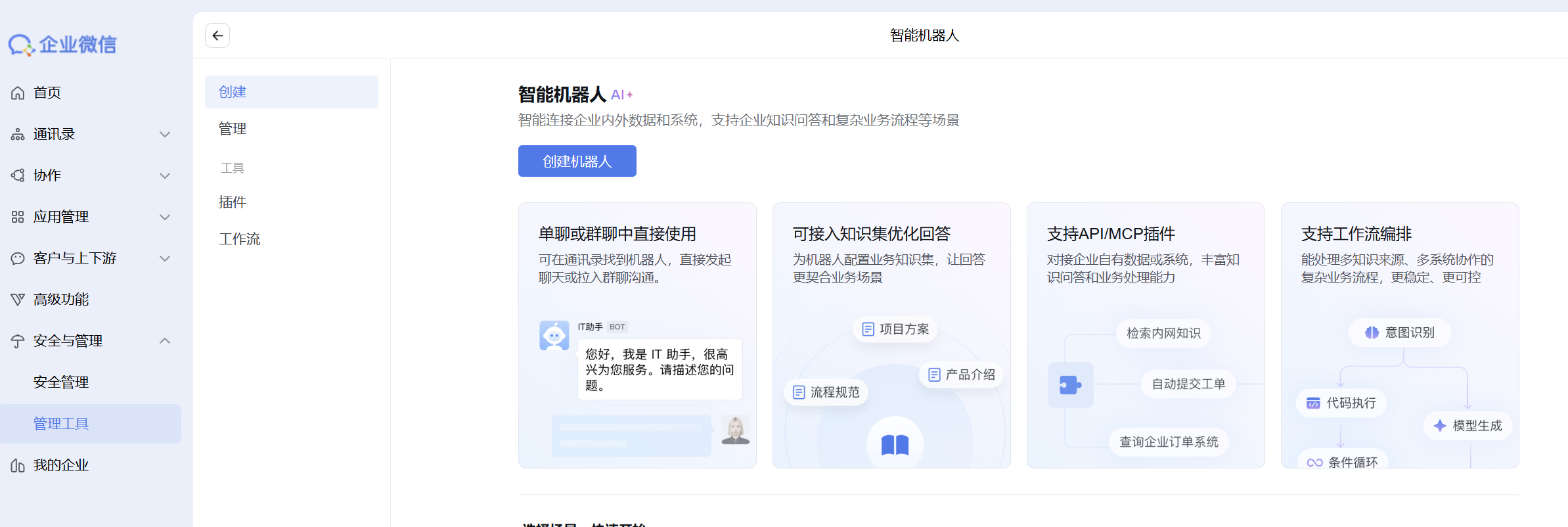 Select Create Bot, then choose manual creation:
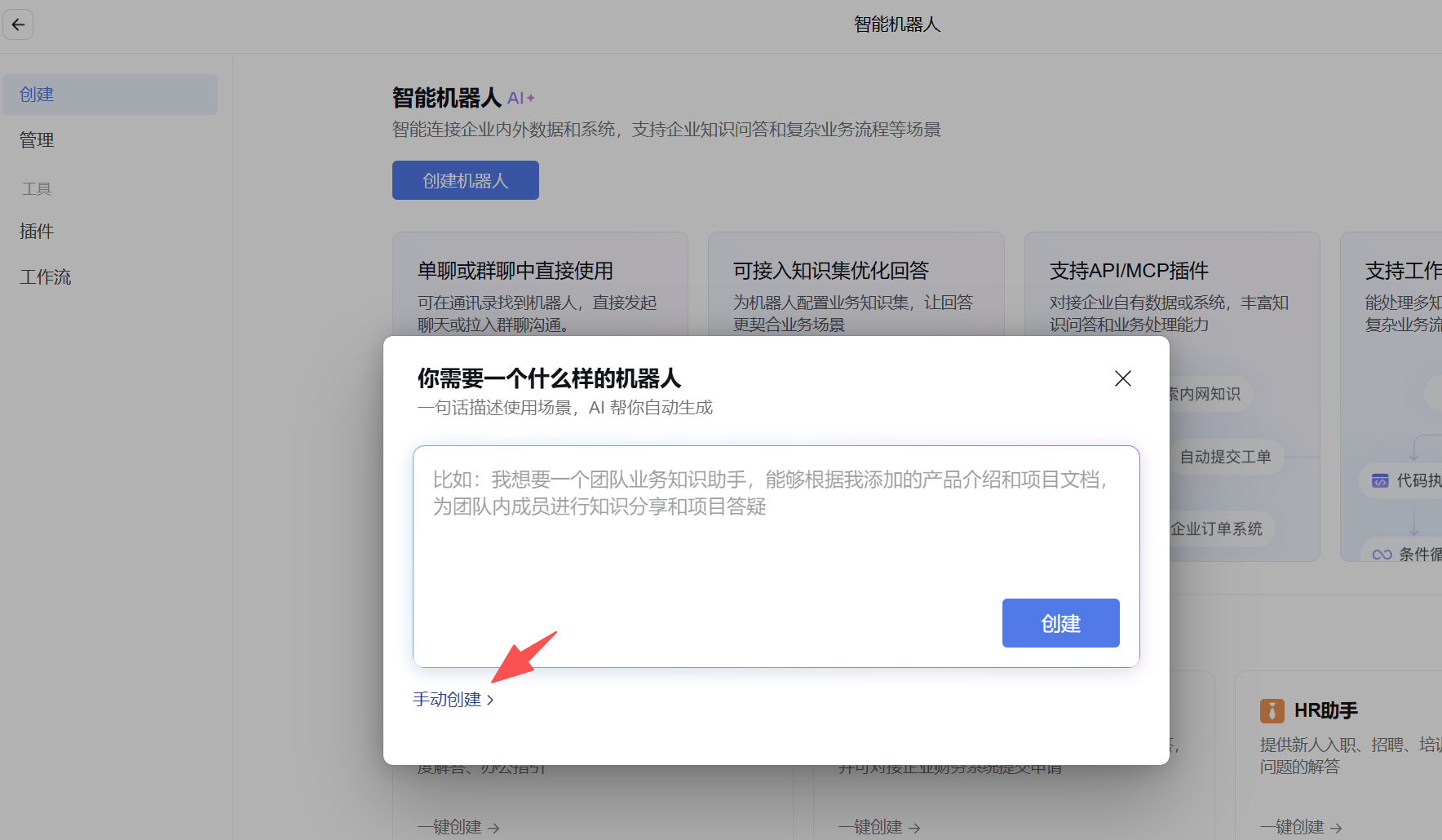 Enter the bot details. This example uses a persistent connection:
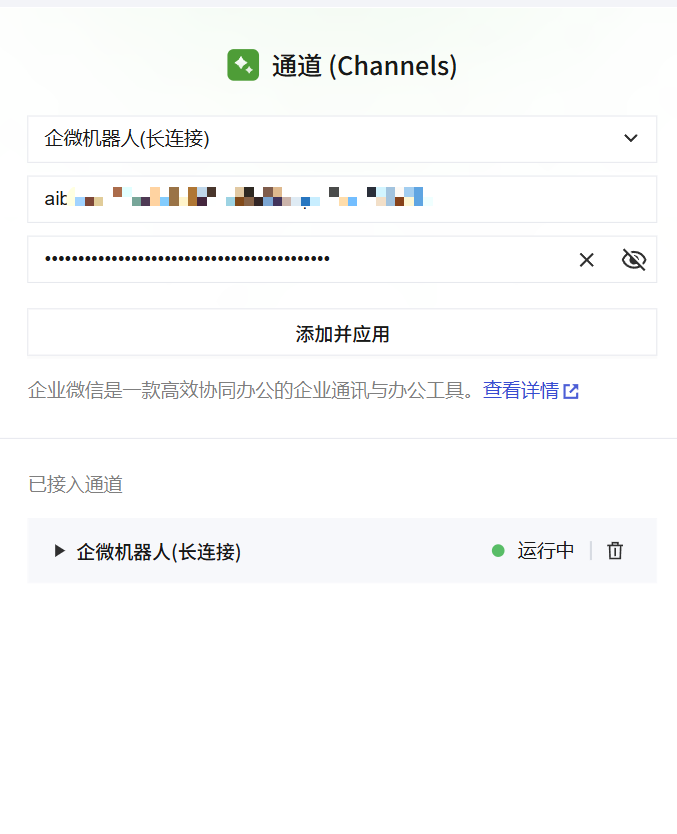
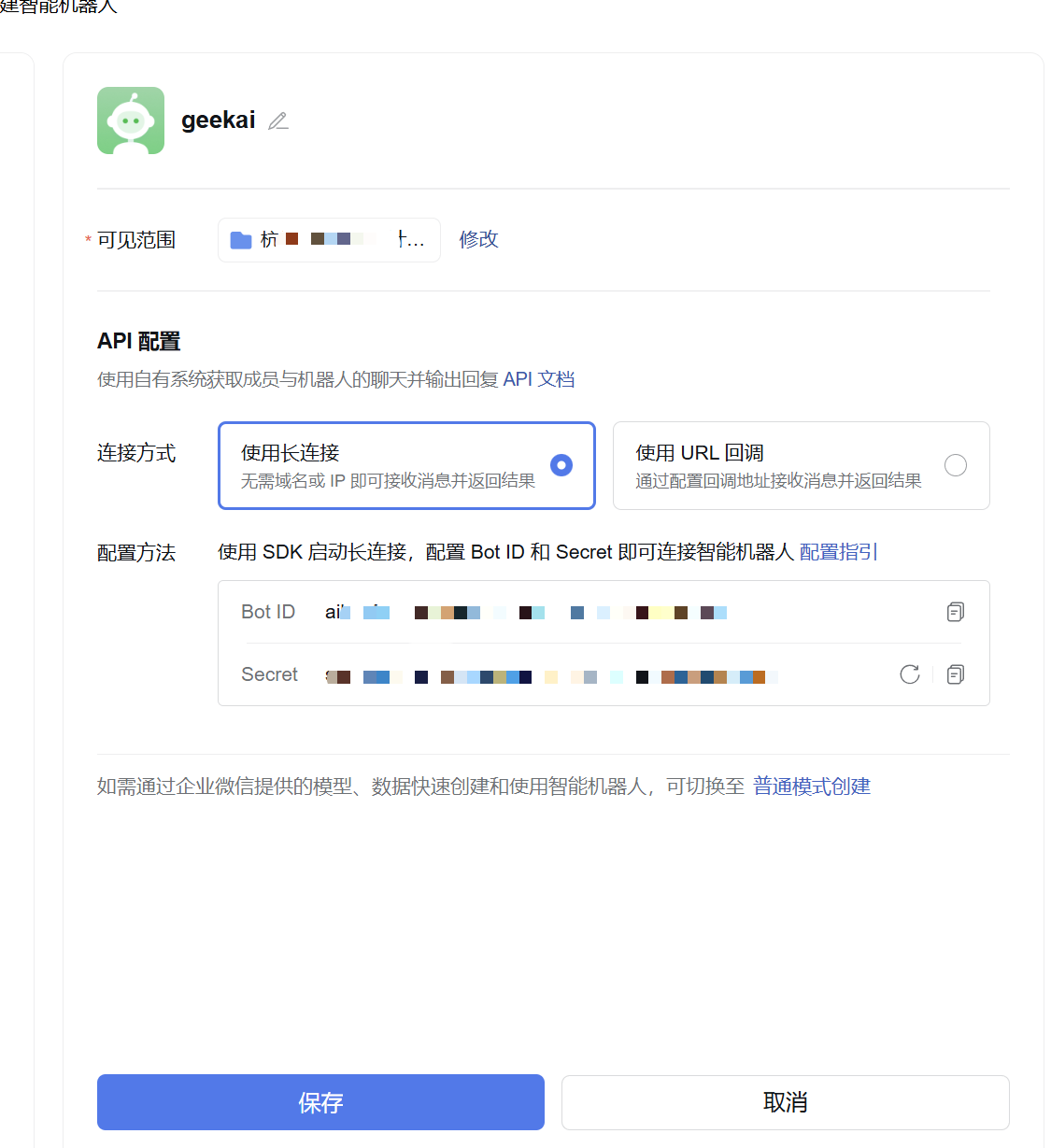 Copy the Bot ID and Secret to the channel configuration in Lighthouse Application Management, then click Add and Apply.
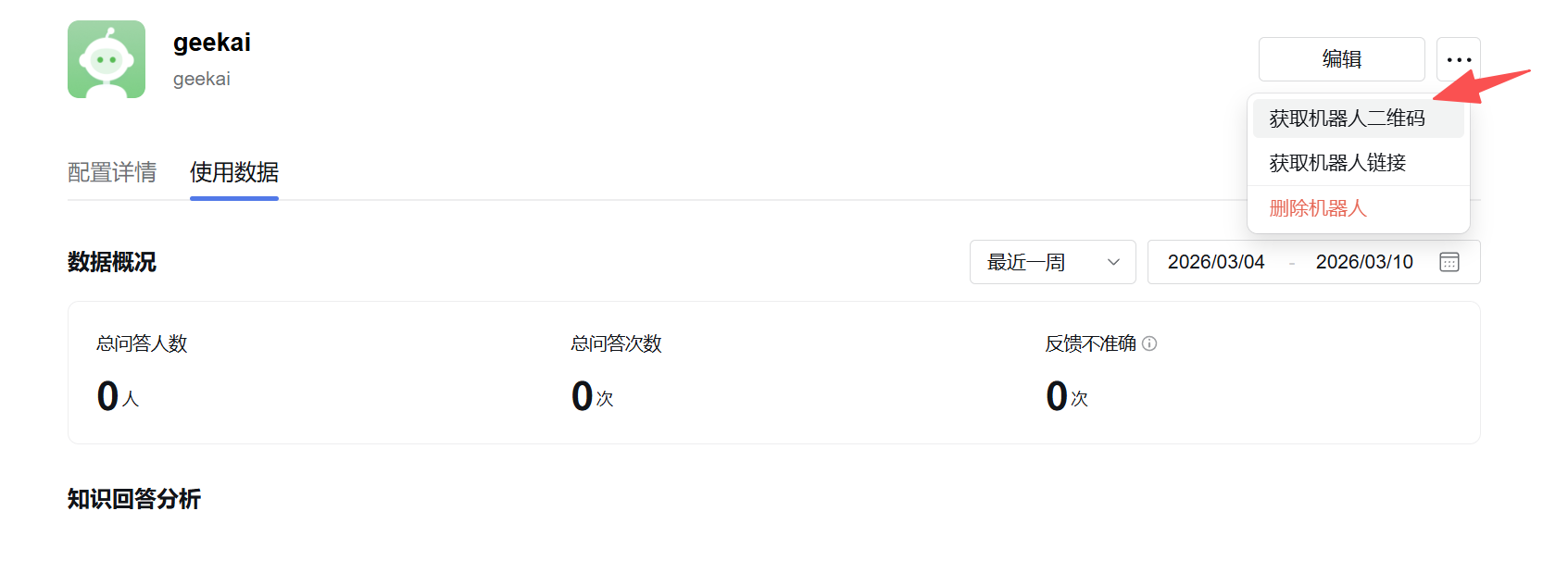
 After saving, open the … menu on the bot details page and get its QR code. Scan the code using the WeCom mobile app to add the bot.
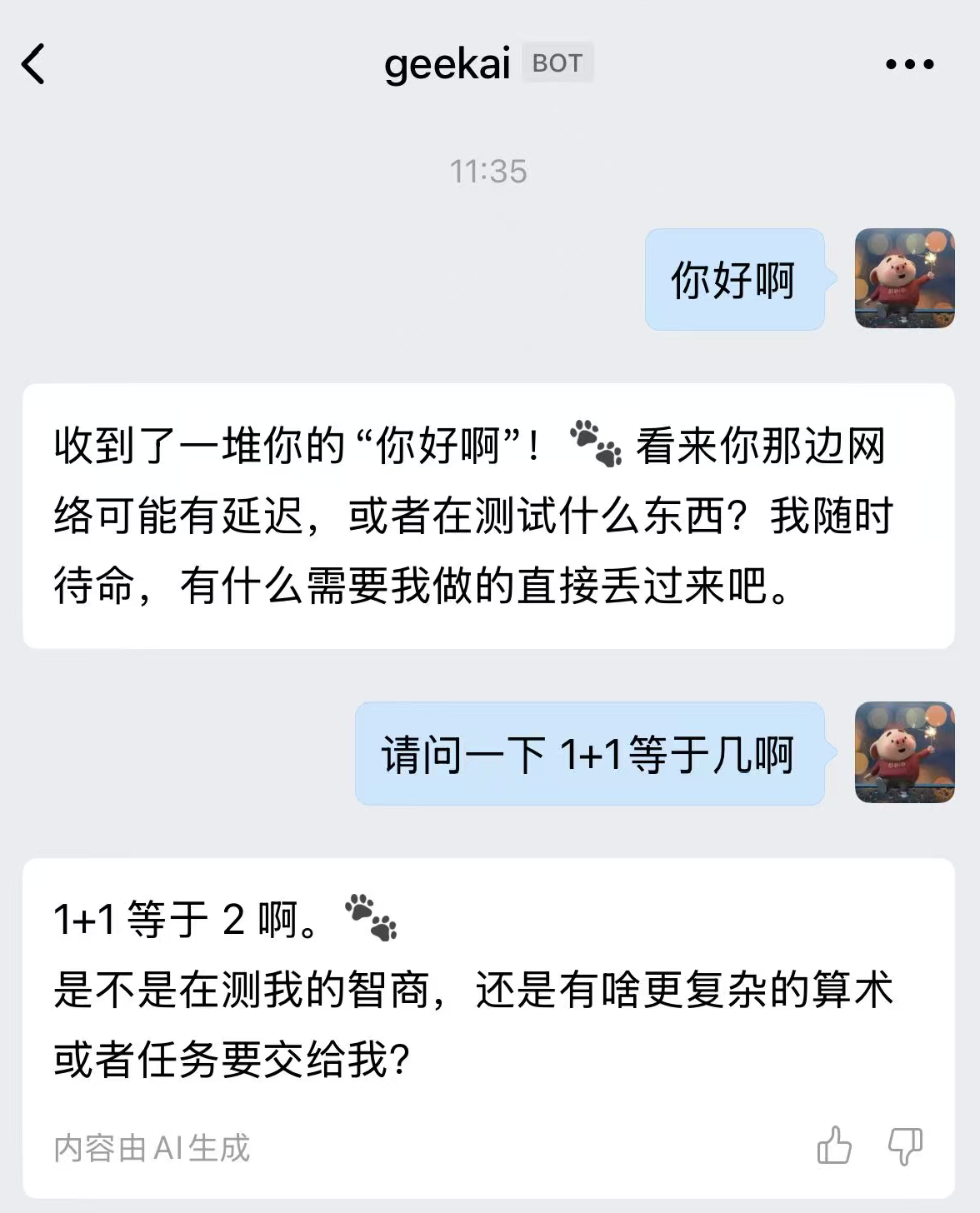
 Send a message to the bot in WeCom:
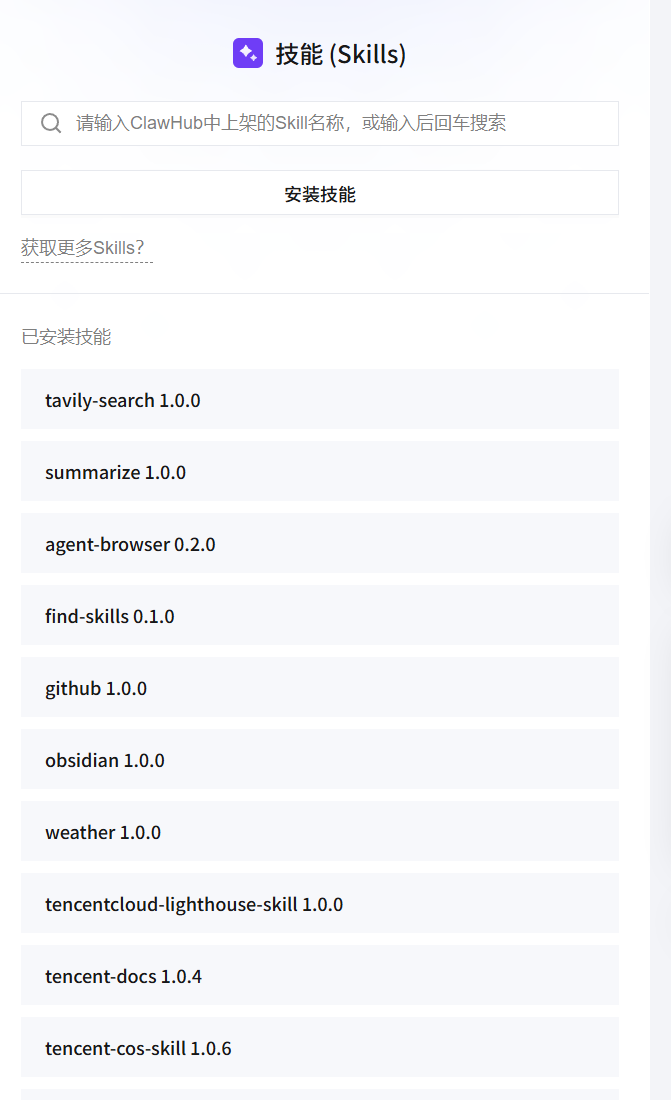
 You can also install and manage skills from the Lighthouse Application Management page.
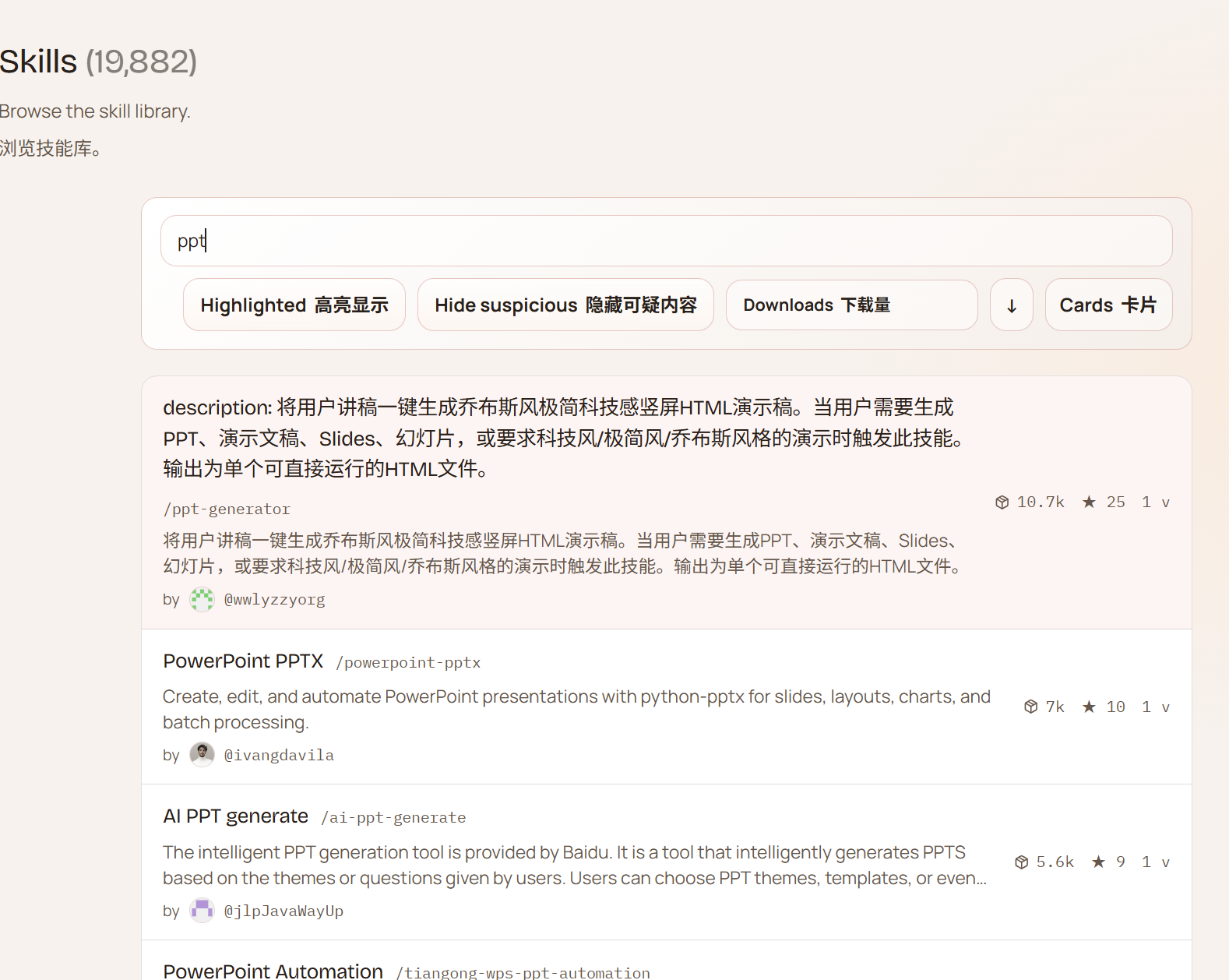
 Click Get More Skills to browse the ClawHub community:
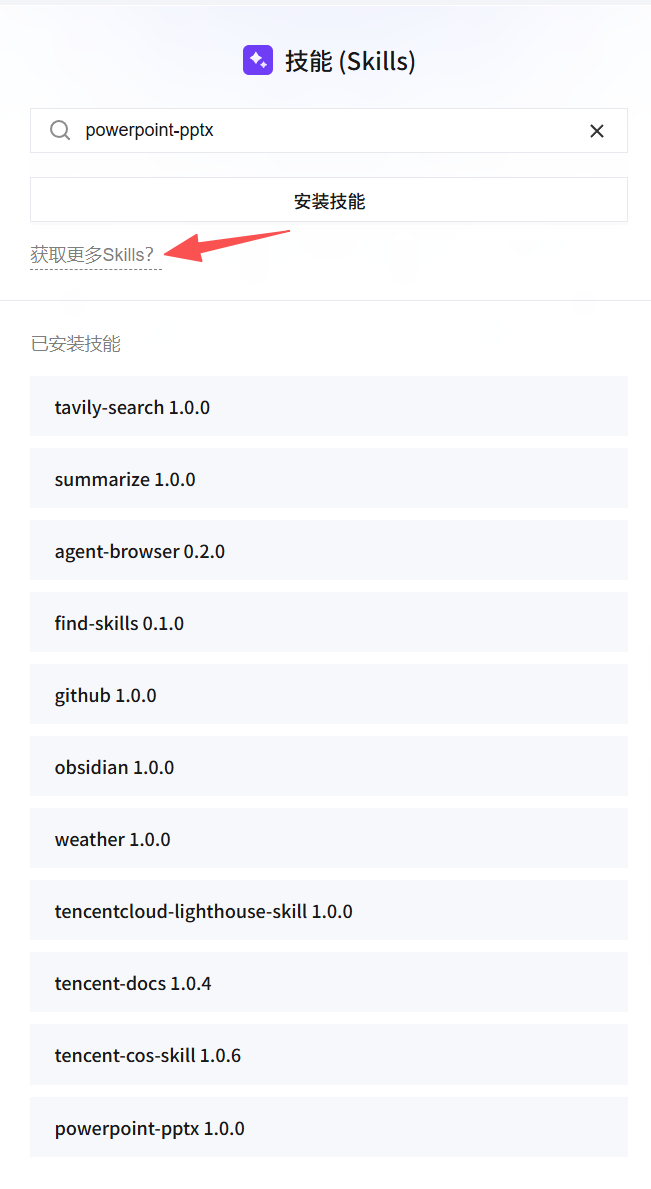
 Copy the name of the skill you want, enter it in the Skills panel in Application Management, and click Install Skill. It will appear in the installed skills list:
 Alternatively, ask OpenClaw to install the skill in a chat:
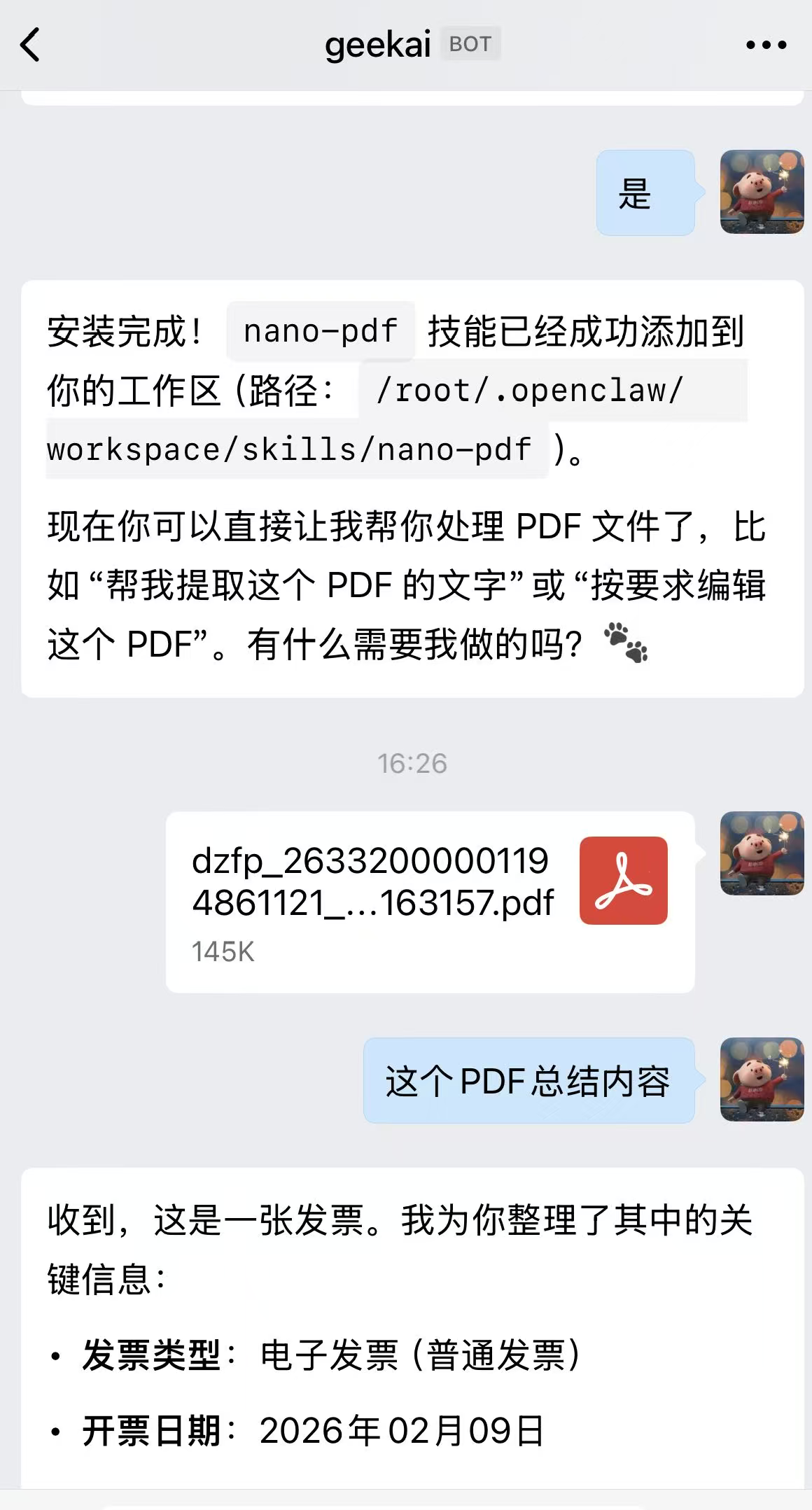
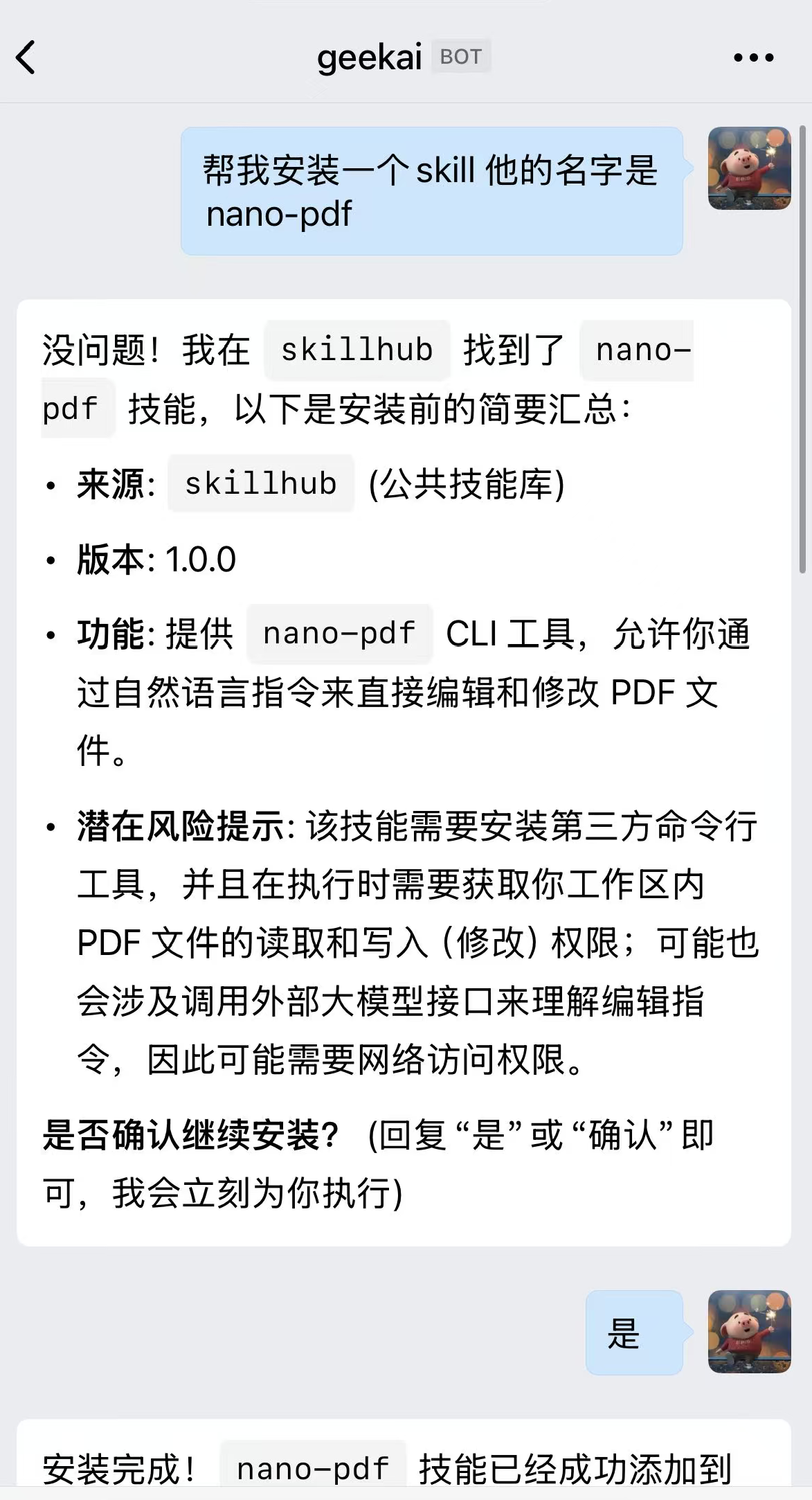 Once installation finishes, you can use the skill in the conversation: